Connecting AI Agents to JEDI with Built-In MCP Server
JEDI includes a built-in MCP server that enables AI agents to connect to your JEDI instance for real-time data access, historical analysis, and dashboard creation.
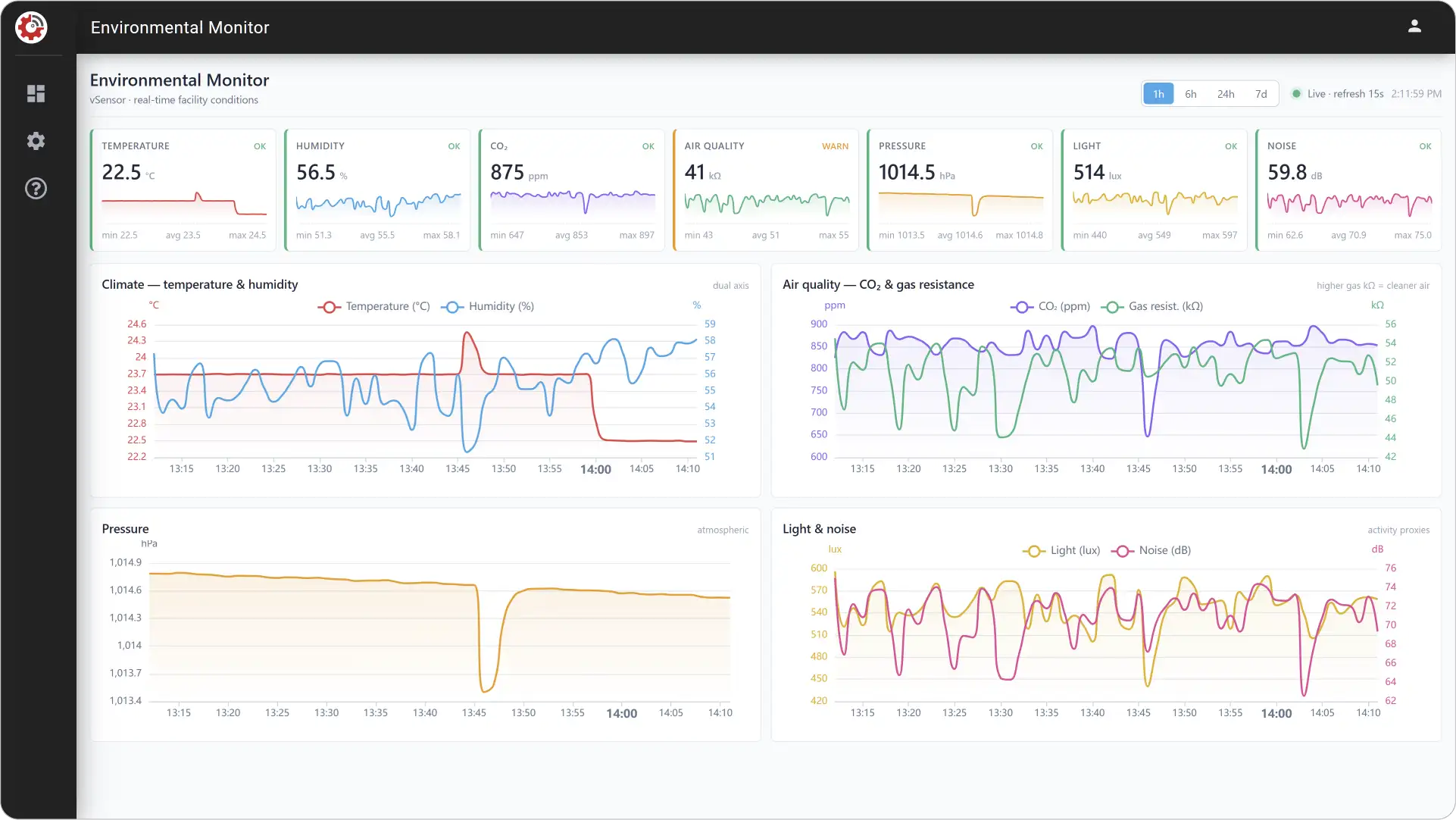
Key Capabilities of JEDI’s Built-In MCP Server
-
Direct AI Agent Connectivity
Includes SSE MCP server for Claude Code, Gemini CLI, and OpenAI Codex, and MCP Gateway bridge for STDIO-based clients like Claude Desktop.
-
Real-Time Metric Discovery
AI agents can discover and search available device metrics within your JEDI environment.
-
Real-Time Monitoring
AI agents can retrieve the latest values from connected sensors and devices in real time.
-
Historical Data Analysis
The MCP server enables AI agents to query historical sensor data.
-
AI-Assisted Dashboard Creation
Allows AI agents to create dashboards directly inside the JEDI webapps environment.
-
Secure Scoped File Operations
Provides a controlled environment for AI-generated dashboard workflows with secure dashboard file operations.
Configuring Your AI Agent
To allow an AI agent to communicate with JEDI, you must configure the agent to connect to the JEDI MCP endpoint.
The default MCP endpoint is:
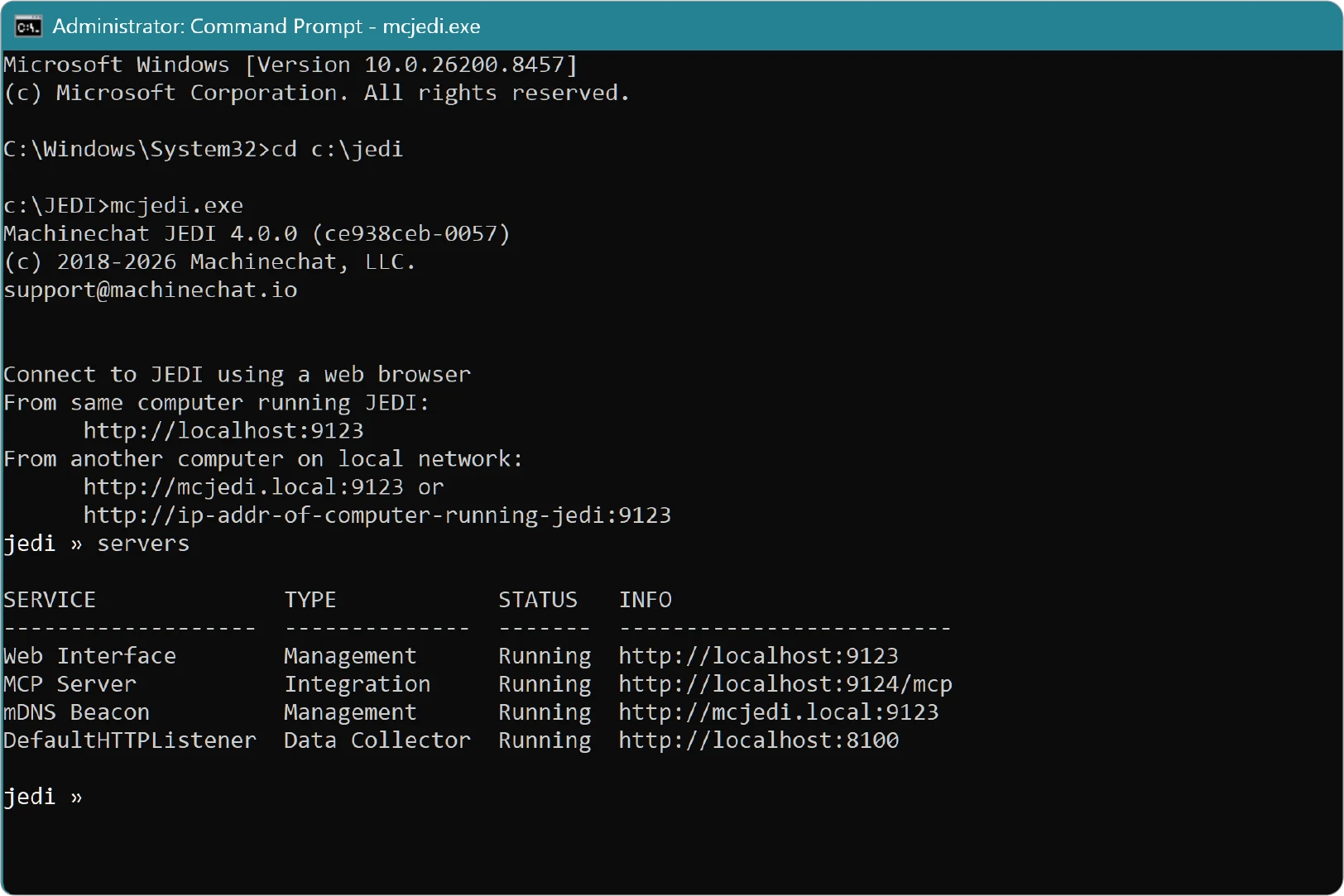
Step 1: Start JEDI
Launch the JEDI application. When successful, JEDI automatically starts the MCP server on port 9124.
Step 2: Configure Your AI Agent
Choose the appropriate configuration based on your AI agent.
Claude Code: Create .mcp.json in your project root:
Gemini CLI: Create .gemini/settings.json in your project root:
OpenAI Codex: Configure ~/.codex/config.toml with:
Claude Desktop: Claude Desktop requires the included MCP Gateway because it does not support SSE transport directly.
Configure claude_desktop_config.json with:
{
  "mcpServers": {
    "jedi": {
      "command": "<path-to-JEDI>\\tools\\mcp\\mcp-gateway.exe",
      "args": ["-server", "http://localhost:9124/mcp"]
    }
  }
}
Note: Replace <path-to-JEDI> with the actual path to your JEDI folder.
Step 3: Restart Your AI Agent
Restart or reload your AI agent after updating the configuration.
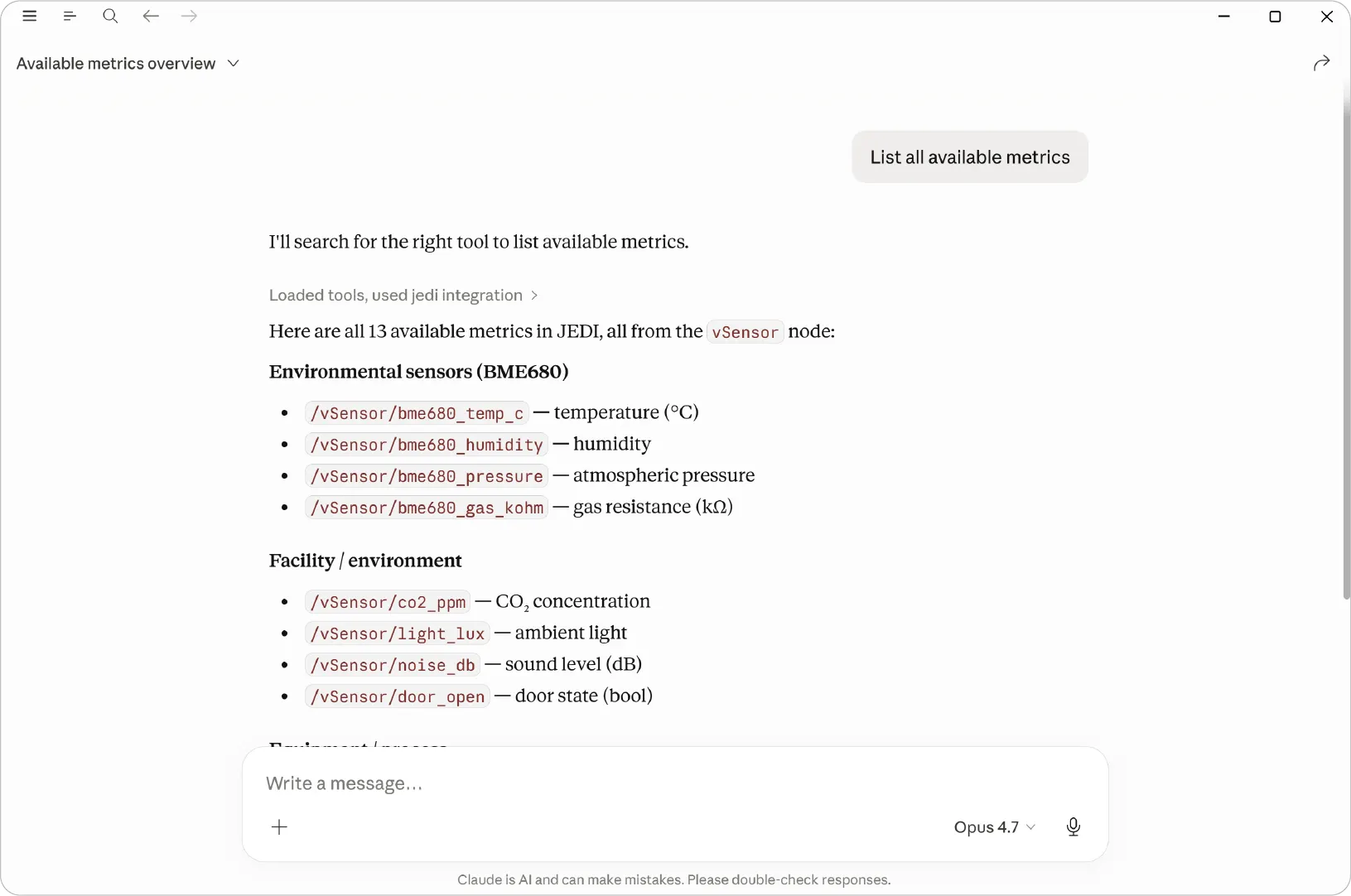
Step 4: Verify the Connection
Ask the AI agent:
If configured correctly, the AI agent will return metrics discovered from your JEDI instance.
Example: Creating a Dashboard
Once connected, you can use natural language prompts to instruct your AI agent to create dashboards using JEDI’s built-in dashboard tools.
Example prompts:
- Create a temperature monitoring dashboard
- Build a real-time environmental monitoring dashboard
- Create a dashboard showing humidity and pressure trends for the last 24 hours
Note
Refresh JEDI on browser to see the new dashboard.
Troubleshooting
Cannot Connect to JEDI
Verify that JEDI is running and the MCP server is active.
Test the endpoint:
A valid SSE response confirms the MCP server is available.
Port Already in Use
If port 9124 is occupied:
- Change the MCP port in
jedi.conf
- Update your AI agent configuration
- Restart JEDI and the AI agent
No Metrics Returned
If the AI agent cannot find metrics:
- Open the JEDI UI at
http://localhost:9123 - Verify data collectors are enabled
- Confirm sensors are sending data
Dashboard Creation Issues
If generated dashboards do not render correctly:
- Confirm the HTTP data collector is enabled
- Verify the webapps directory is writable
- Restart the AI agent after restarting JEDI
- Review JEDI logs for permission or file write errors
Begin building intelligent, AI-assisted monitoring experiences with JEDI!
Now that your AI agent is connected, continue exploring dashboard creation workflows with real-time and historical data access.
Need help?
Contact our support team: support@machinechat.io