Configuring Notification Services in Machinechat JEDI
Ensure seamless alerts and notifications for your data monitoring by configuring JEDI's email and SMS services. These are found under Settings Notifications in JEDI's navigation panel.
General Settings
- Max Retries: Sets the maximum number of attempts JEDI will make to send a message before reporting an error. This applies to both email and SMS.
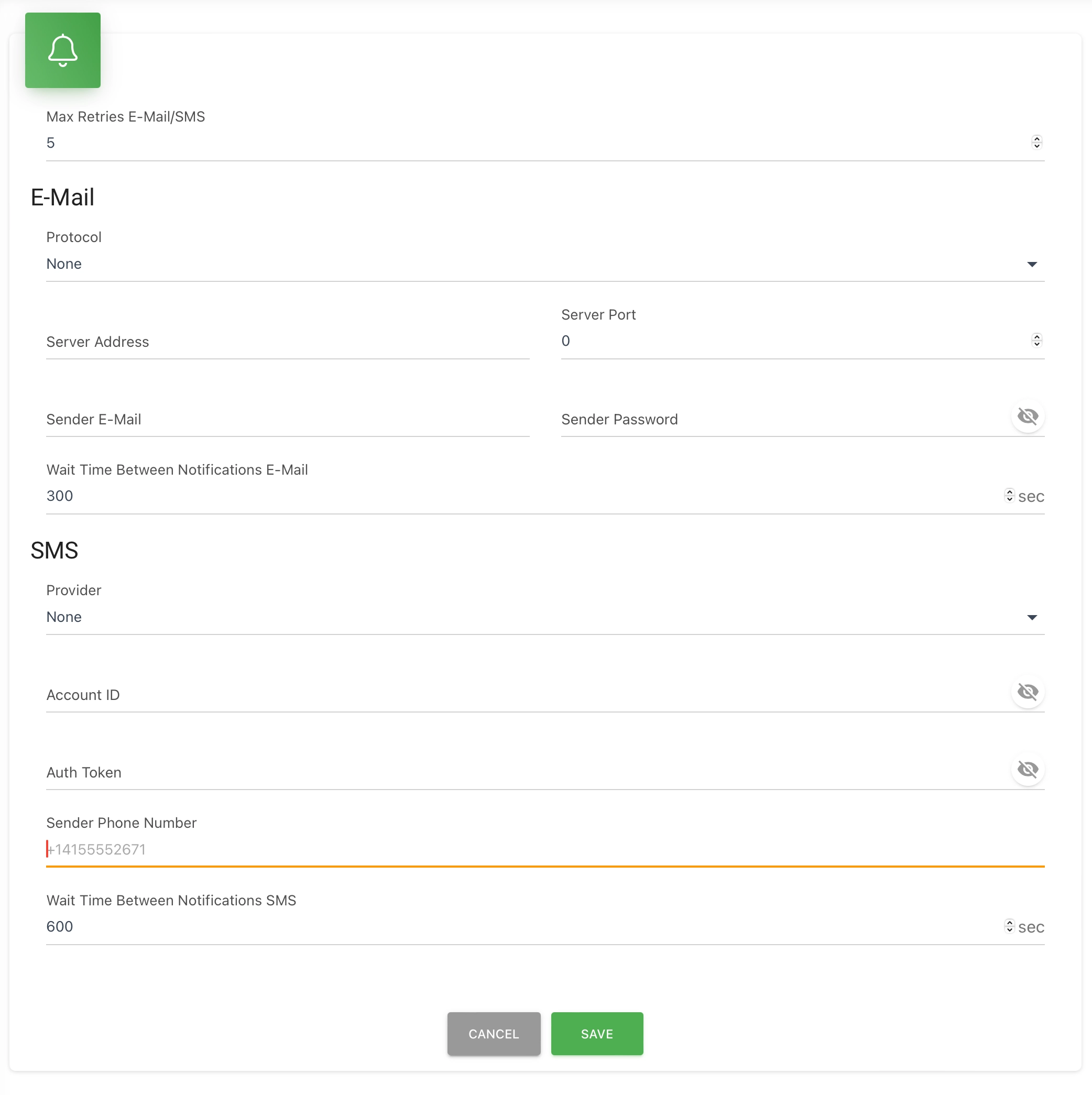
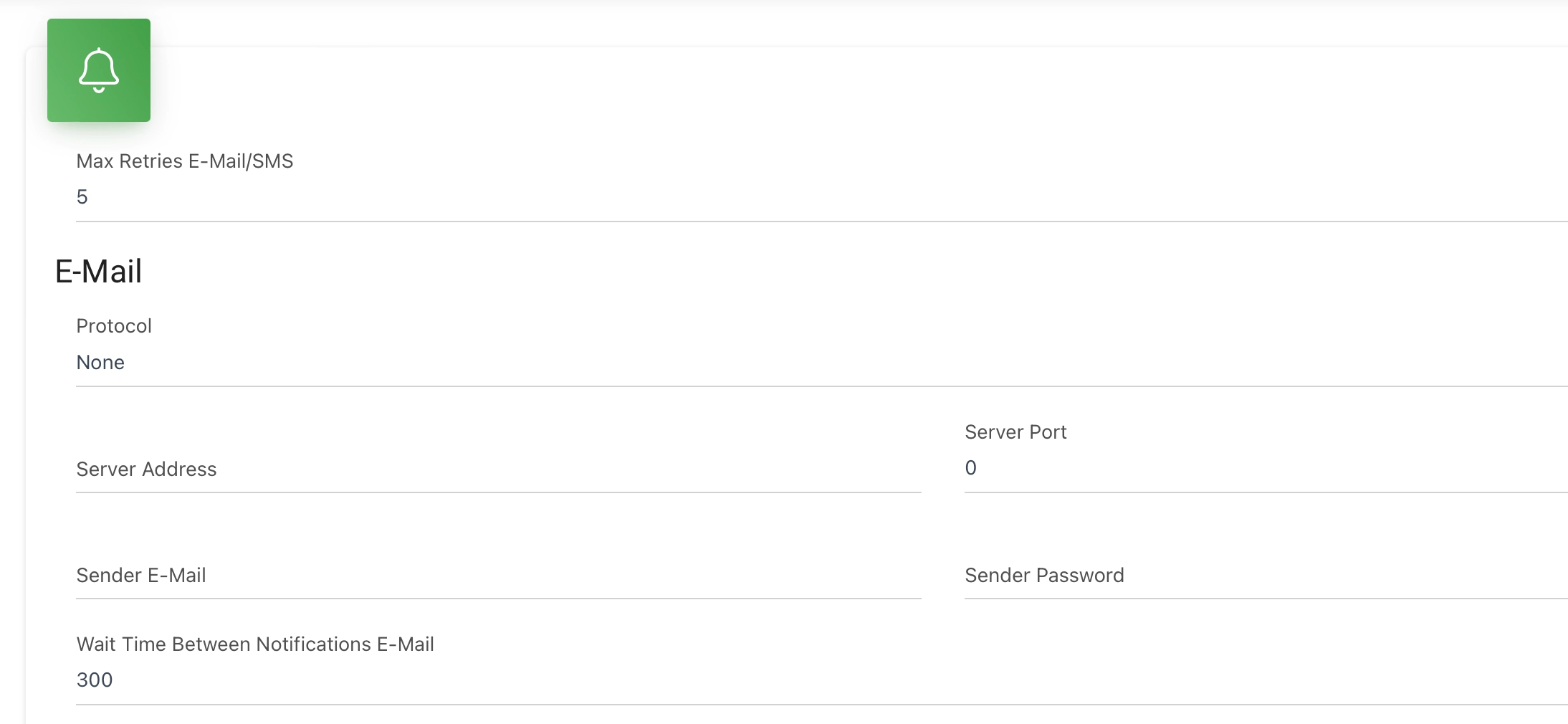
Email Service Setup
- Protocol: Currently, JEDI supports SMTP.
- Server Address: Enter the IP address or hostname of your SMTP server.
- Server Port: Specify the TCP/IP port used by your SMTP server (common ports include 25, 465, or 587).
- Sender Email: Provide the email address that will appear as the sender for your notifications. This email address is also used for authentication.
- Sender Password: Enter the password associated with the sender email address.
- Wait Time Between Email Notifications: Set a minimum delay (in seconds) between consecutive email notifications to prevent overwhelming recipients.
Gmail SMTP Setup
If you're using a Gmail account, Google requires you to authenticate using an App Password instead of your regular account password.
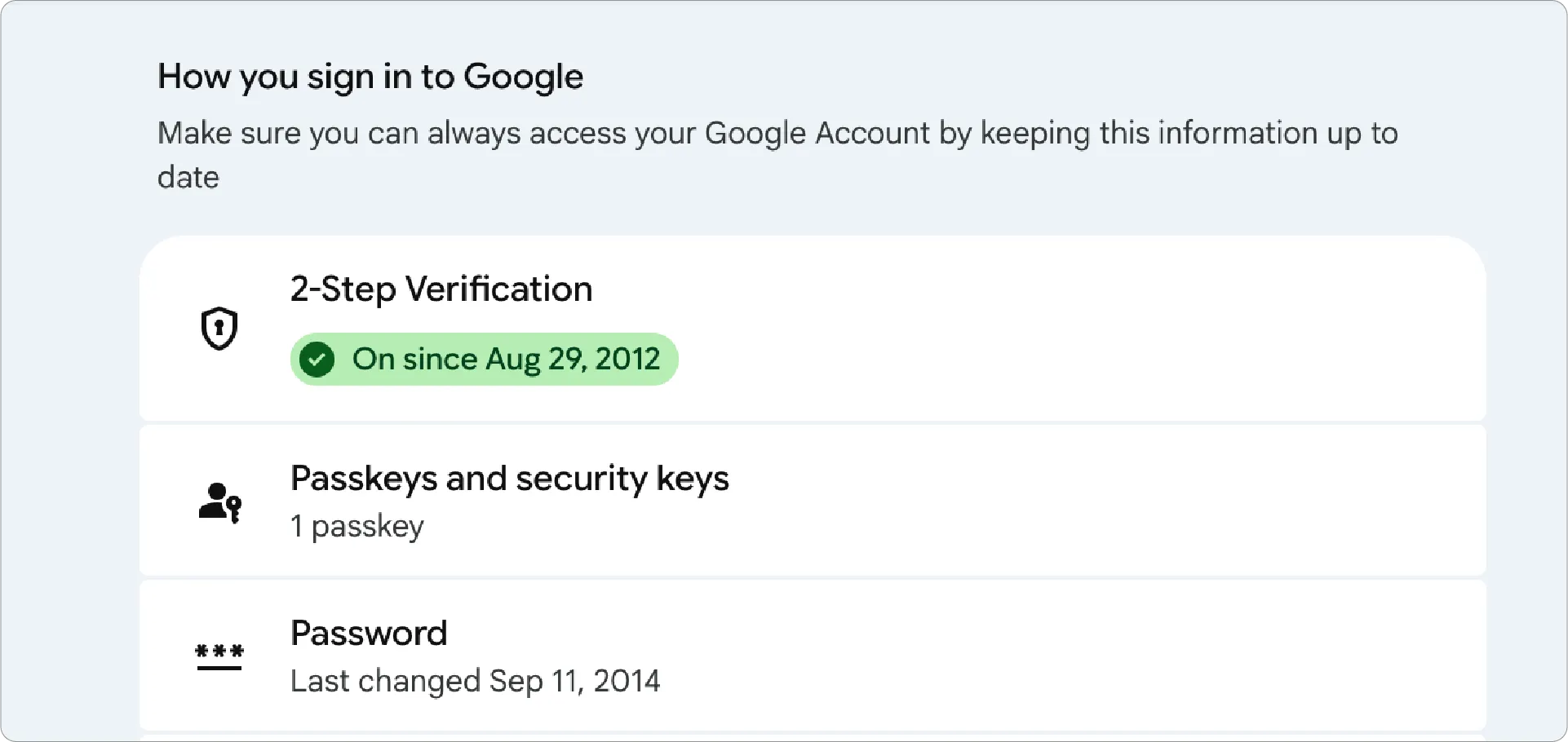
1. Enable Two-Step Verification:
- Go to https://myaccount.google.com/security.
- Under How you sign in to Google, click 2-Step Verification and complete the setup.
- When you're done, confirm that 2-Step Verification is turned On.
2. Generate an App Password:
- Return to the Security page of your Google Account and select App Passwords.
- In the App name field, enter a descriptive name (e.g., JEDI SMTP).
- Click Create and copy the generated 16-character App Password.
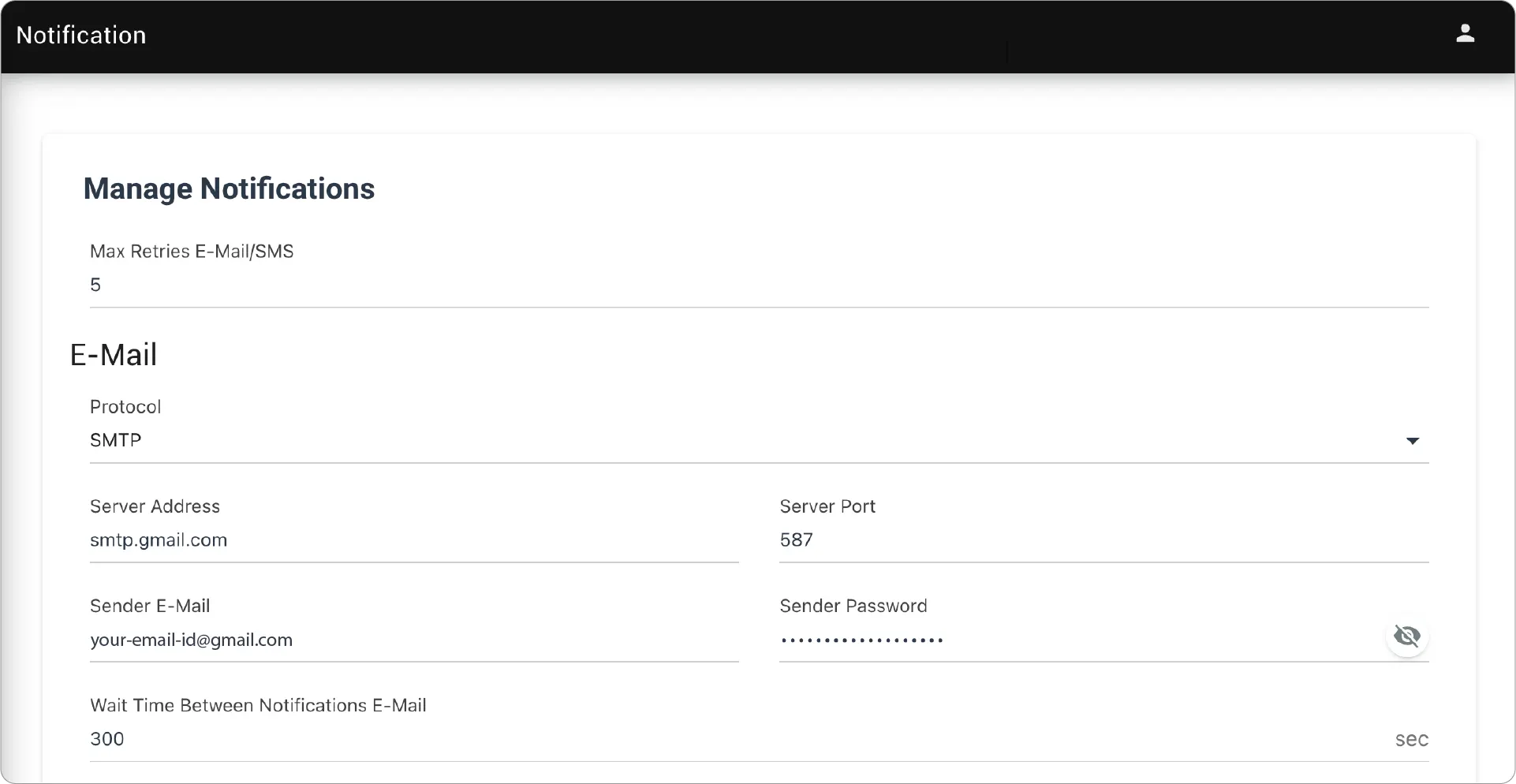
3. Configure JEDI SMTP Settings:
- In JEDI, go to Settings Notifications.
- Enter the following SMTP settings:
- Protocol: SMTP
- Server Address: smtp.gmail.com
- Server Port: 587
- Sender E-Mail: Your Gmail address
- Sender Password: Paste the 16-character App Password (without spaces)
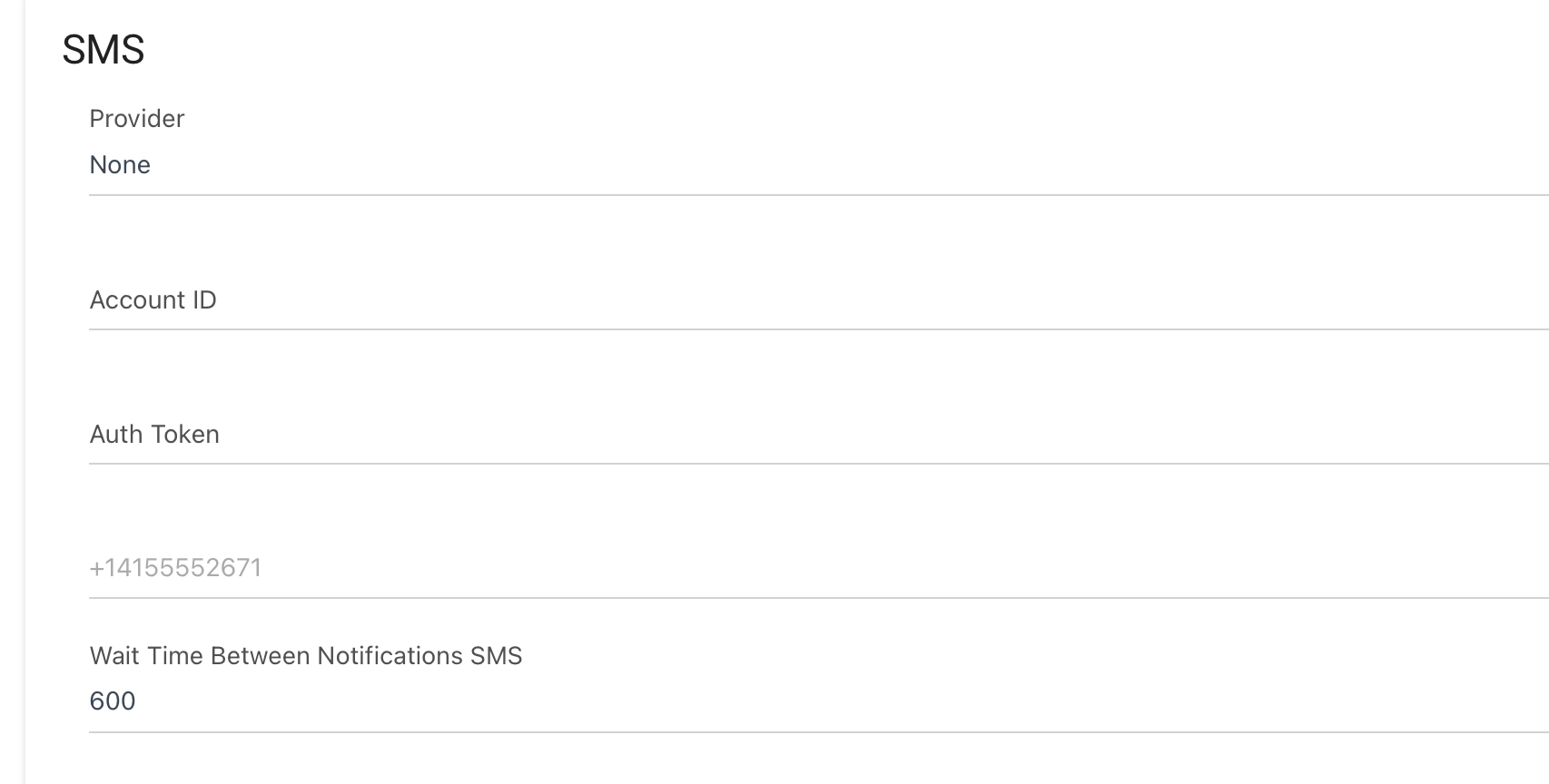
SMS (Twilio) Service Setup
- Provider: Currently, JEDI supports Twilio.
- Account ID: Provide your Twilio Account ID.
- Auth Token: Enter your Twilio API Auth Token.
- Sender Phone Number: Specify the Twilio phone number you will use for sending SMS messages.
- Wait Time Between SMS Notifications: Set a minimum delay (in seconds) between successive SMS notifications to manage volume.
Important
- Twilio Account: You will need an active Twilio account (which may include subscription fees) to utilize SMS notifications.
- Email Security: Some email providers (e.g., Gmail, Yahoo, Outlook) require additional settings within your email account to enable SMTP access. Consult your provider's documentation.
Testing Your Configuration
After configuring your settings, use JEDI's rules engine to set up a test notification action to verify that your emails and/or SMS messages are being sent successfully.
Need help?
Contact our support team support@machinechat.io