Turn Your JEDI Data into Actionable CSV Reports
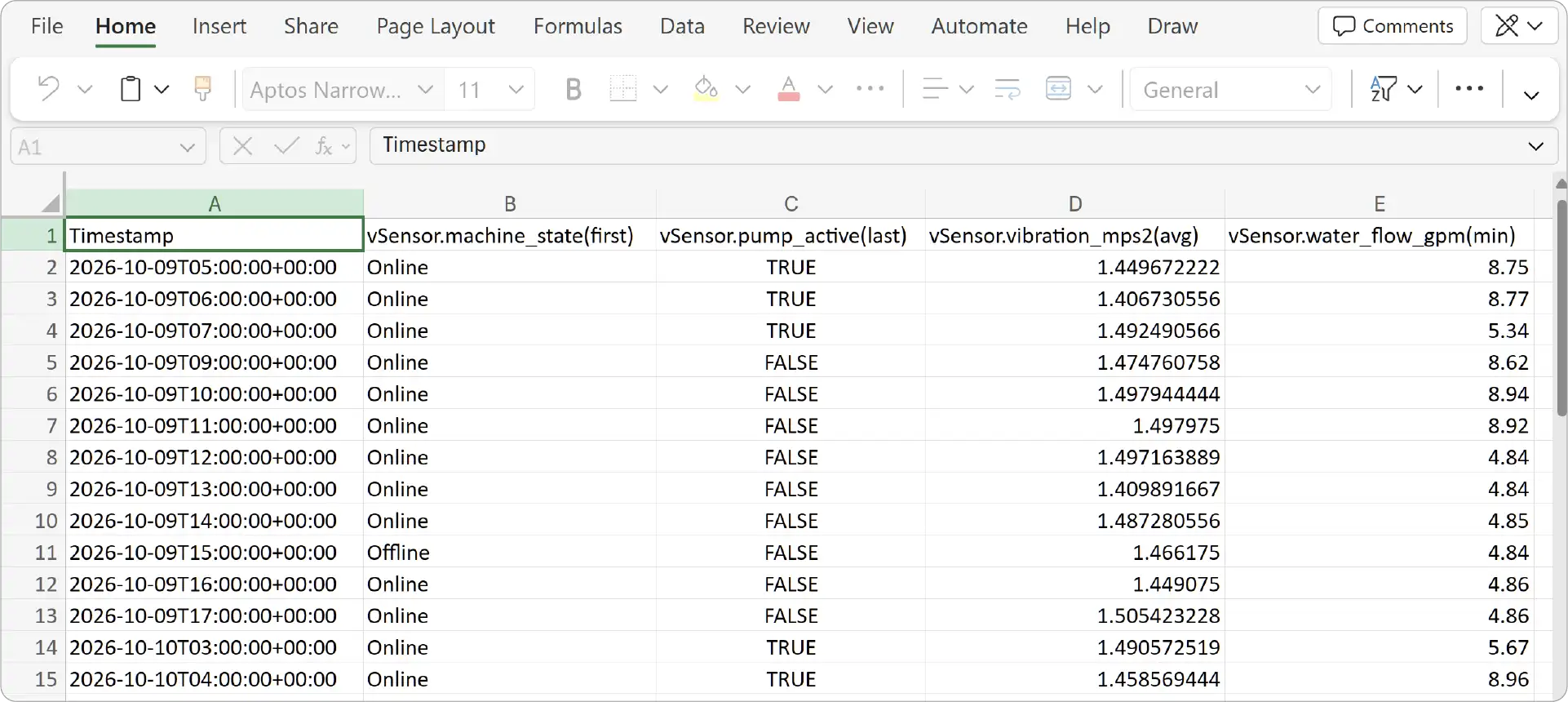
JEDI's CSV reports automate the scheduled delivery of data snapshots as CSV file attachments to selected JEDI users through email. Configure the report content with selected metrics to create structured datasets for further analysis, record keeping, or sharing.
Note
If you want to create condition-based or schedule with condition-based reports, go to Rule-Based CSV Reports.
Key Features
- Structured CSV Output: Organize device data into clearly defined columns for easy analysis.
- Scheduled Reports: Email CSV reports automatically according to your configured schedule.
- Flexible Data Selection: Choose the devices and metrics you want to include in your report.
- Data Aggregation: Apply aggregation to summarize data over a selected time period.
- Reorderable Metrics: Arrange metrics in the order you want them to appear in the report.
Create a CSV Report
- Go to SettingsReports.
- Click Add Report.
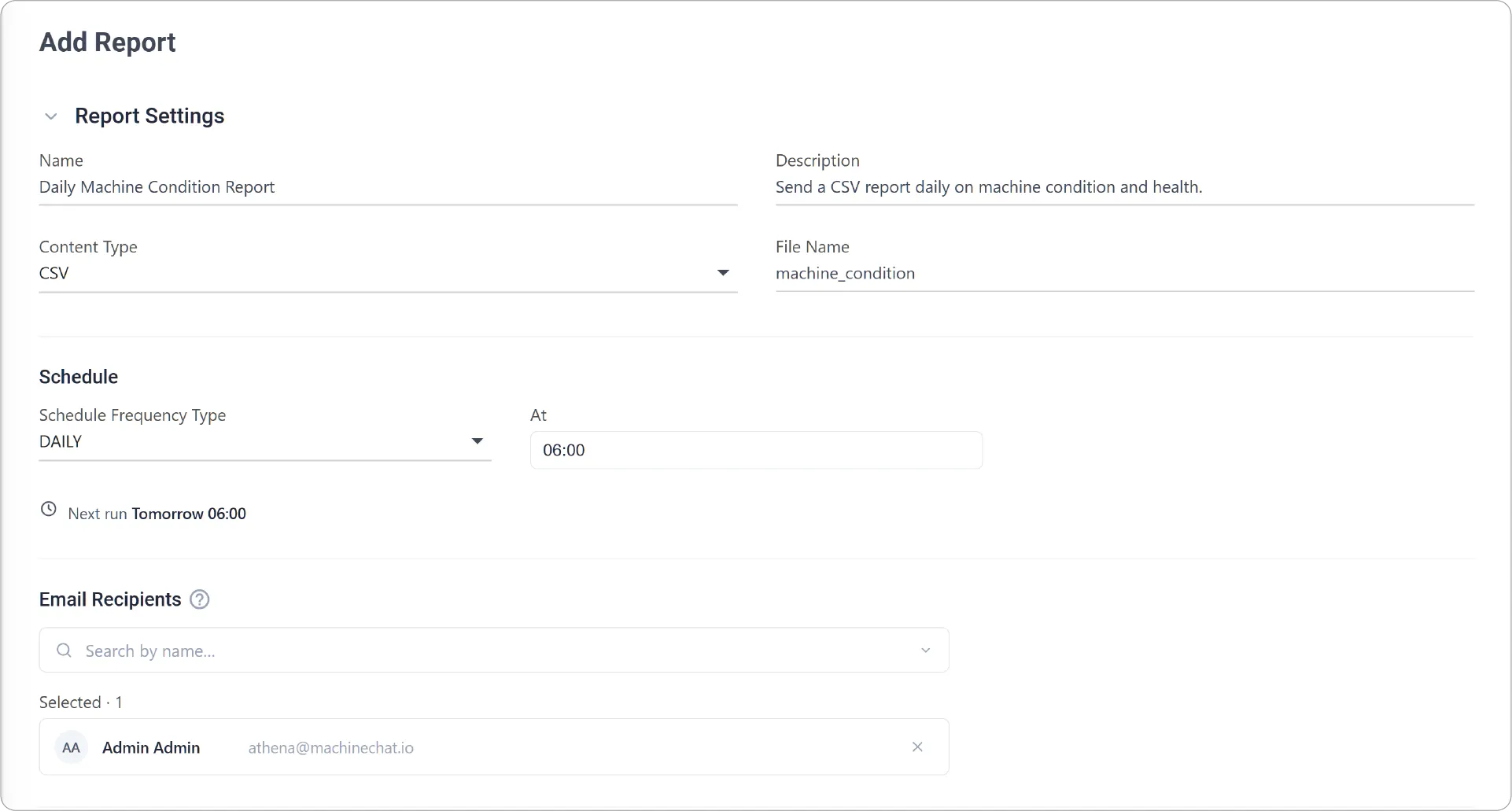
Configure Report Settings:
- Enter a Name and an optional Description for the report.
- Select Content Type as CSV and enter a File Name for the generated CSV file.
- Under Schedule, select Schedule Frequency Type:
- DAILY to run at the same time every day.
- EVERY to run at a regular interval (hours, days, or weeks).
- Select at least one JEDI user as the Email Recipient.
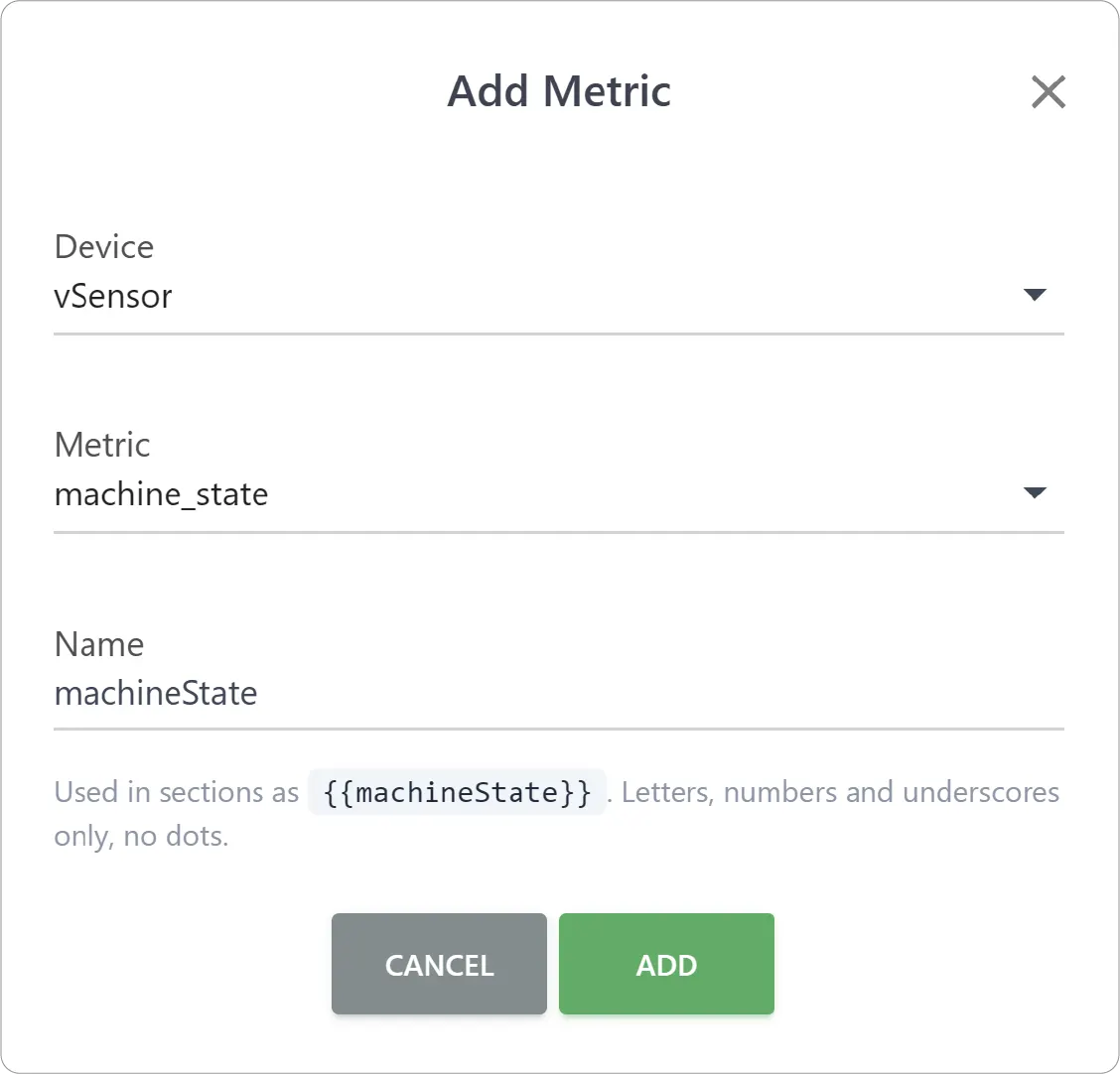
Add Metrics
- Under Data Settings, click Add Metric.
- Choose the Device and the Metric.
- Enter a easy-to-read Name for the metric and Add.
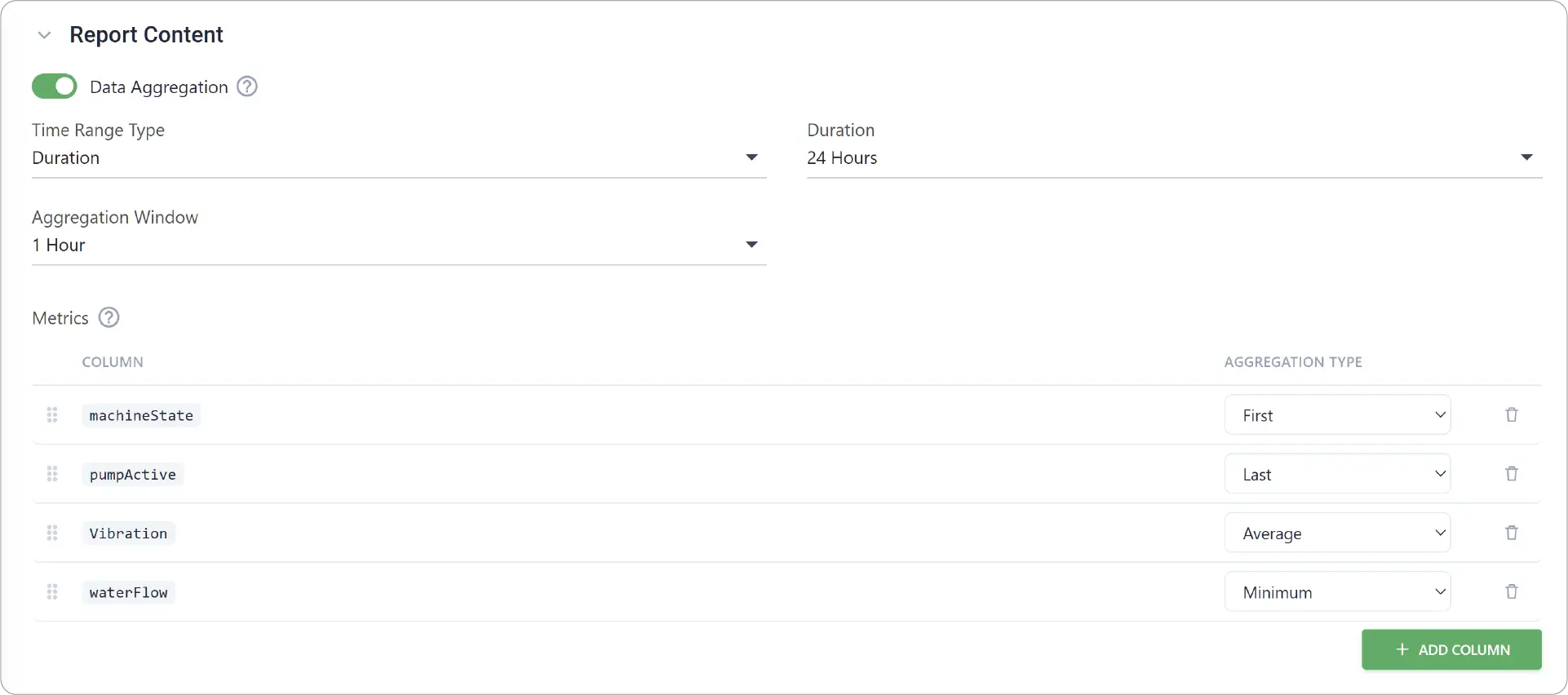
Configure Report Content
- Enable Data Aggregation for data points that are an aggregate of data received within specified Aggregation Window. Disable to include all received data.
- Choose the Time Range Type and the period the report covers:
- Duration to use data collected during specific amount of time right before report generation
- Fixed Range for specific period of time or custom range of dates
- Pick Aggregation Window time.
- Click Add Column.
- Select the Column metric and Aggregation Type.
- Repeat to add the remaining metrics.
Reorder Metrics
- To change the order in which the metrics appear, grab the grip/drag handle icon () on the left of the metrics and drag.
Save and Enable the Report
- Click Save after configuring the report.
- In Manage Reports page, click under Actions and Enable it.
Use Cases
- Data Analysis: Export summarized device data for further analysis.
- Equipment Monitoring: Maintain structured records of equipment performance.
- Environmental Monitoring: Track and review temperature, humidity, and other environmental measurements.
- Production Tracking: Create recurring records of production-related metrics.
- Record Keeping: Maintain historical data snapshots for operational reference.
- Management Reporting: Share structured data with teams for review and analysis.
Get More from Your JEDI Data
Explore HTML Reports to create visualization-rich, presentation-ready reports. Try Grid Dashboard to visualize your data in charts, Table Dashboards for detailed data views, or Web App Dashboards for interactive dashboards and external web applications.
For condition-based or schedule-with-condition reports, check out Rule-Based CSV Reports.
Need help?
Contact our support team: support@machinechat.io