Add, Manage, and Run Reports with JEDI's Report Manager
Manage Reports is a central hub to add, view, and manage your reports. The list refreshes automatically every few seconds to keep the latest run information up to date. Use reports to automatically deliver device data to selected JEDI users through scheduled email delivery.
Note
Report Manager is available in JEDI 4.2 and later and is accessible to administrators only.
Prerequisites
Before configuring HTML or CSV report, make sure the following requirements are met:
- Access to JEDI admin account.
- An email notification service (SMTP) has been configured.
- Recipients must be existing JEDI users with valid email addresses.
- Ensure JEDI is receiving data from your devices.
Adding Reports
- Go to SettingsReports.
- On the Manage Reports page, select Add Report.
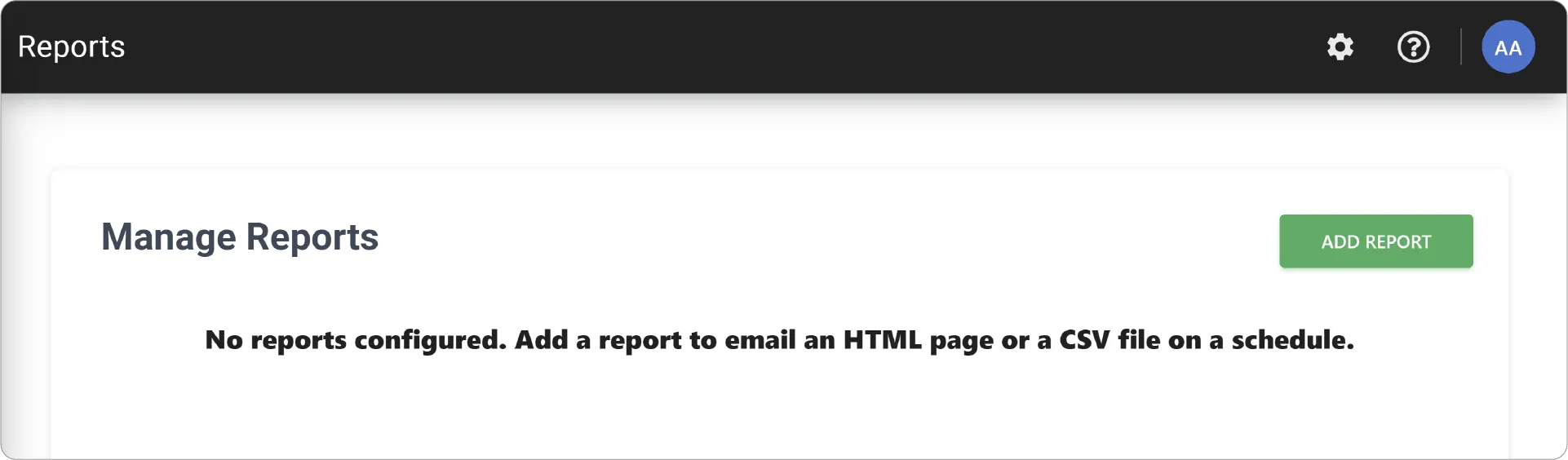
JEDI supports two report types:
- HTML Reports: Create formatted reports with customizable text, table, and chart sections to present device data in an easy-to-read format.
- CSV Reports: Generate structured files containing timestamps and metric readings, with each selected metric represented in its own column.
View and Manage Reports
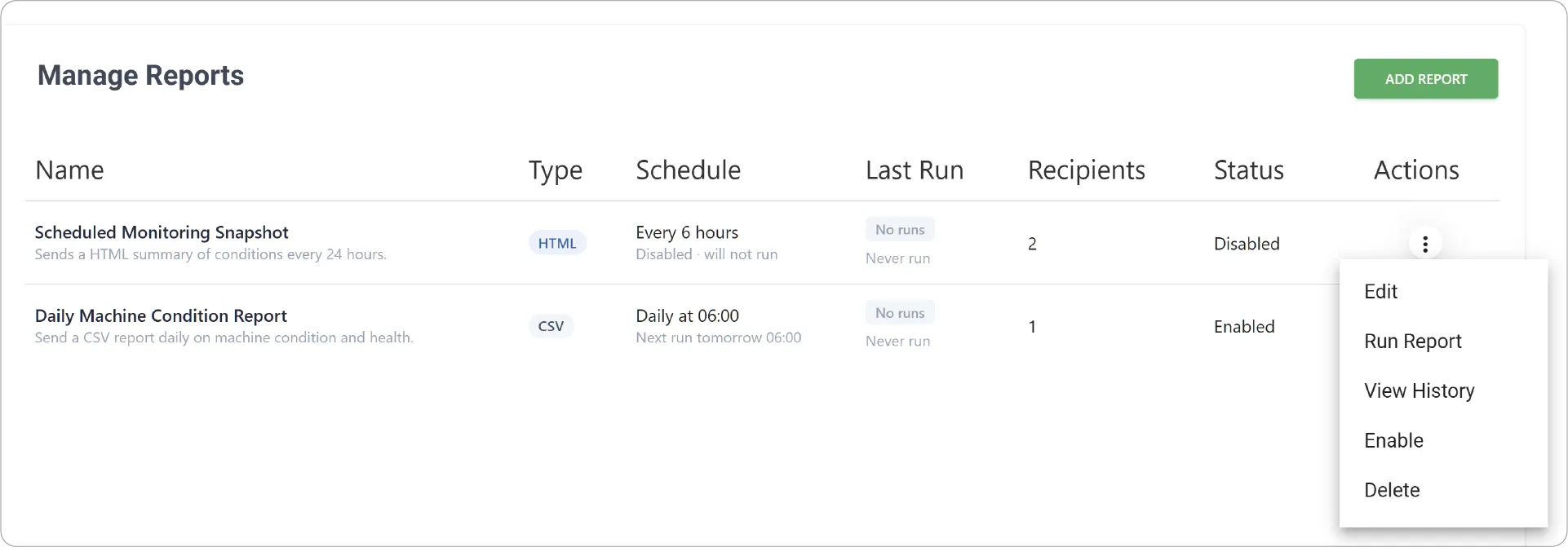
- Name displays the report name and its description.
- Type identifies the report as HTML or CSV.
- Schedule shows how often the report runs and when it is scheduled to run next.
- Last Run shows the result and time of the most recent run. Failed runs include a reason.
- Queued: The report was generated and handed to the email service for delivery.
- Succeeded: The report was generated, with nothing further to deliver.
- Failed: The report could not be generated or sent to any recipient.
- Skipped: The previous run was still in progress, so the new run did not start.
- No runs: The report has never run.
- Recipients displays the number of users selected to receive the report.
- Status indicates whether the report is Enabled or Disabled.
- Actions opens the menu for editing, running, reviewing, enabling, disabling, or deleting a report.
Report Actions
Click the menu icon () under Actions beside a report to manage it.
Edit Reports
- Select Edit to open the report configuration form.
- Update its settings, schedule, recipients, or content, then click Save Changes.
Run a Test Report
- Select Run Report to generate and send a report immediately without waiting for its next scheduled run.
- Check your email for the attachment.
View and Clear Report History
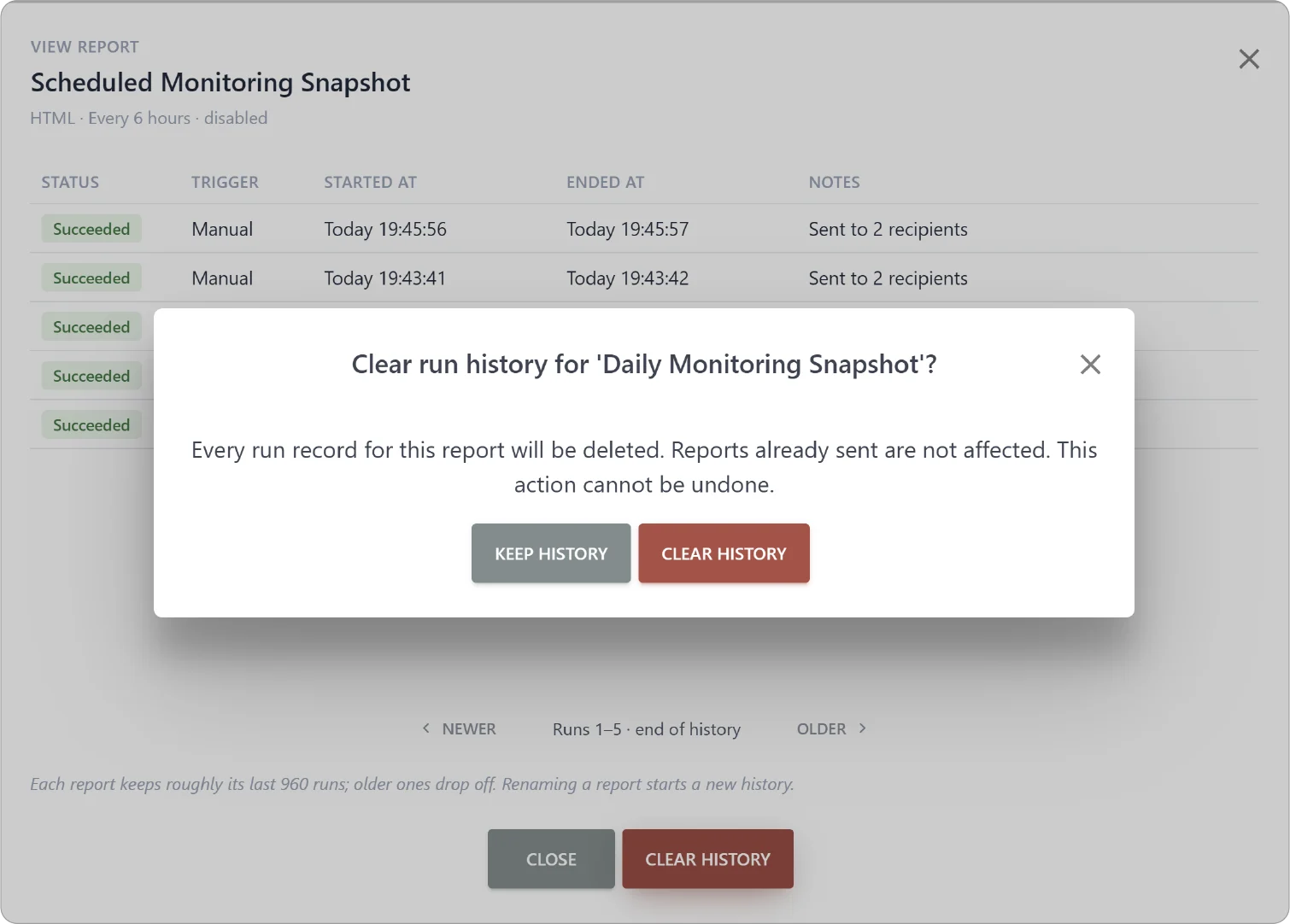
- Select View History to review previous report runs and investigate delivery issues.
- Click Clear History to delete run history.
Enable/Disable Reports
- Select Enable to resume scheduled delivery.
- Select Disable to to temporarily pause a report without losing its settings or previous run records.
Delete Reports
- Select Delete and click Delete Report to confirm to permanently delete the report.
Limitations and Troubleshooting
- Reports attachments are limited to 10 MB. Oversized reports are emailed without the attachment and marked as failed. Decrease time range, increase aggregation window, or reduce the number of metrics.
- Five reports can be delivered per schedule. If multiple reports are scheduled for the same time, some may wait for a delivery slot or fail if the notification system remains busy. Stagger report schedules by a few minutes.
- In case of failed reports, check the following:
- Email notification configuration is valid
- Recipients' email address was provided
- Report size is within 10 MB
Make the Most of Your Reports
With JEDI Report Manager, you can automate recurring reports, send device data to the right people, and check report execution and delivery from a single page.
Ready to create your first report? Check out HTML Reports to schedule formatted reports using text, tables, and charts or CSV Reports to export metric readings into structured CSV files.
Check out rule-based HTML Reports and CSV Reports to trigger them when a condition is met.
Need help?
Contact our support team: support@machinechat.io