Turn Your JEDI Data into HTML Reports
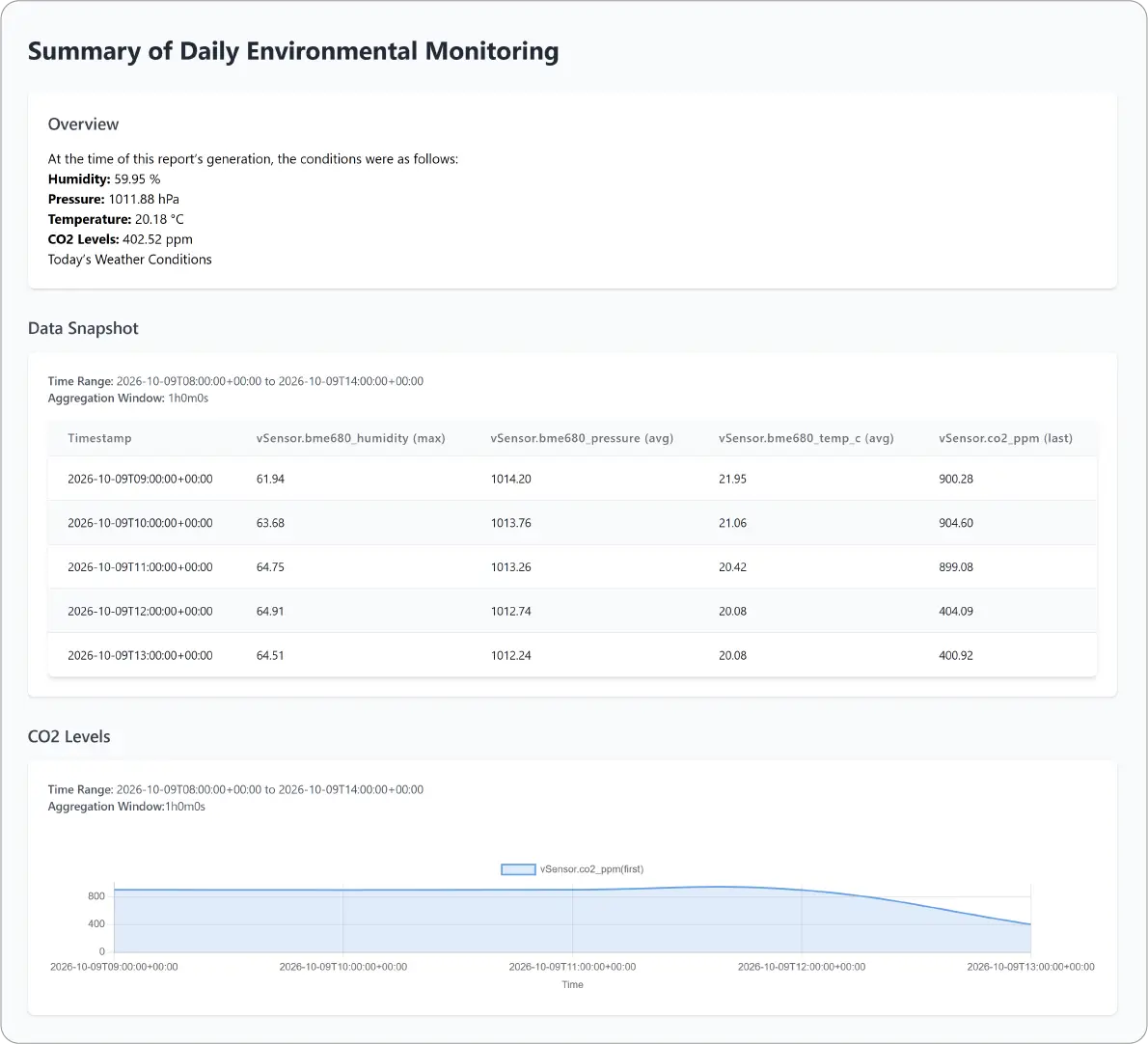
JEDI's HTML reports lets you configure automated scheduled delivery of professional HTML report containing Text, Table, and Chart sections. Each report summarizes device data over a specified time period and is sent as an attachment to the selected JEDI users over email.
Note
If you want to create condition-based or schedule with condition-based reports, go to Rule-Based HTML Reports.
Key Features
- Flexible Report Content: Combine text, tables, and charts to create reports tailored to your monitoring needs.
- Custom Metric Selection: Choose the devices and metrics you want to include and assign easy-to-read names for use throughout the report.
- Scheduled Delivery: Configure reports to run daily or at regular intervals and automatically send them to selected recipients.
- Flexible Data Analysis: Configure time ranges, aggregation windows, and aggregation types to present your data in the way that best fits your reporting needs.
- Reorderable Content: Drag and rearrange report sections and metrics to create the structure you want.
- Test Before Delivery: Run a report manually after saving to verify the generated report and email attachment before relying on the schedule.
Create an HTML Report
- Go to SettingsReports.
- Click Add Report.
Configure Report Settings
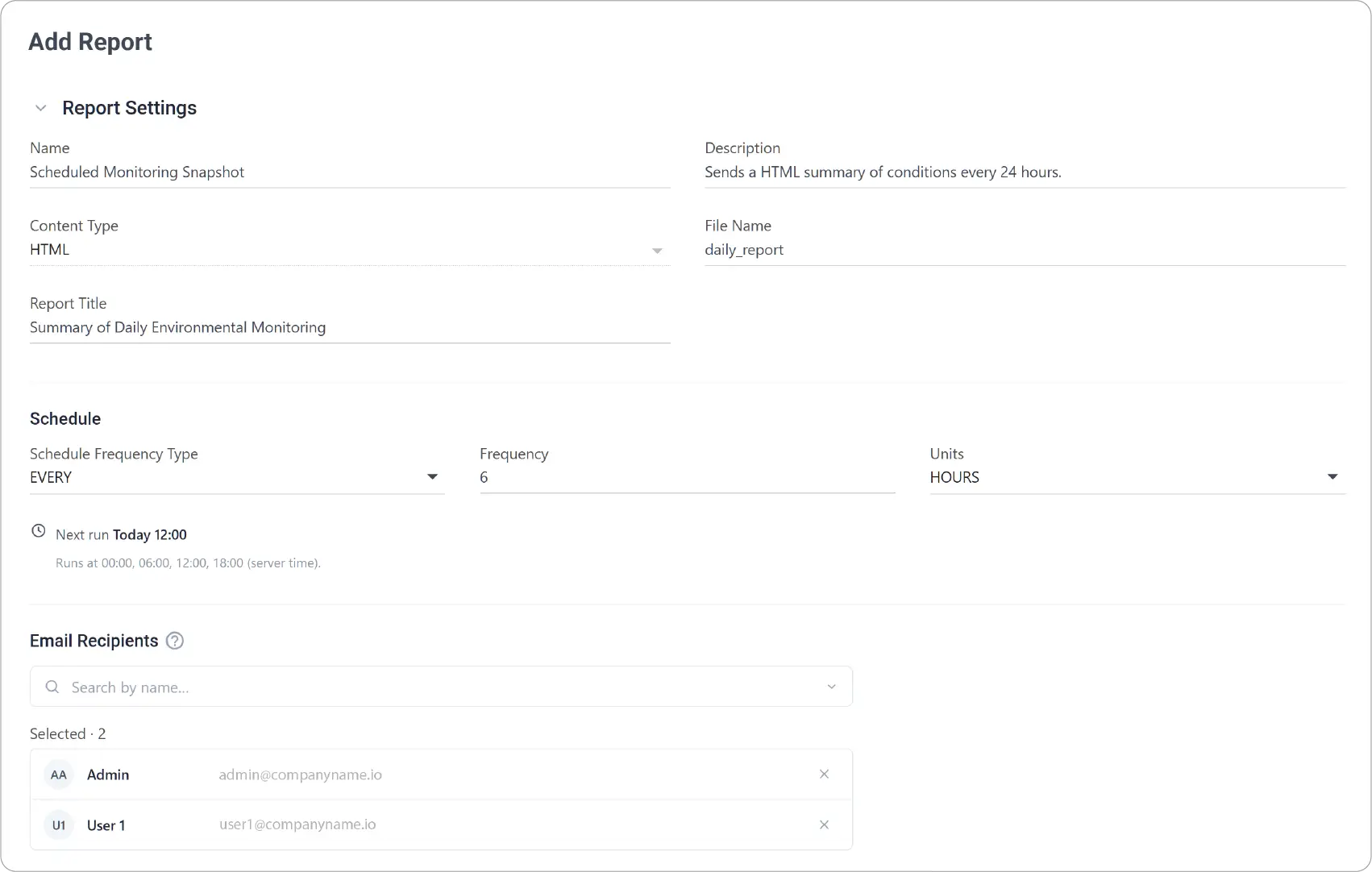
- Under Report Settings, enter Name and Description (optional).
- Set Content Type to HTML.
- Enter a File Name and Report Title. Report Title appears as the main heading in the generated report.
- Under Schedule select and configure Schedule Frequency Type:
- DAILY to run at the same time every day.
- EVERY to run at a regular interval of hours, days, or weeks (minimum 1 hour).
- Select at least one recipient under Email Recipients.
Add Metrics
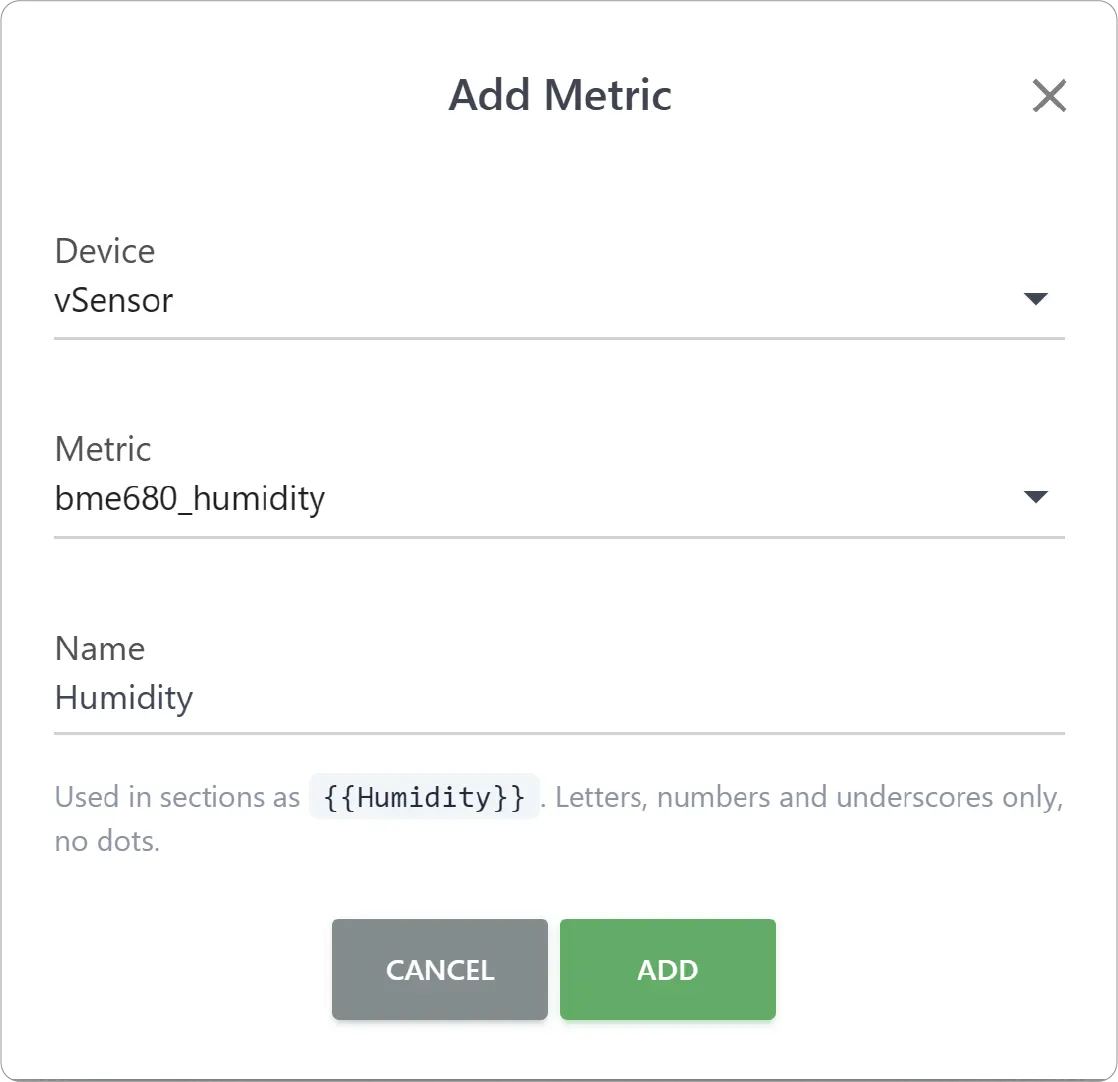
- Under Data Settings, click Add Metric.
- Choose the Device and the Metric.
- Enter a easy-to-read Name for the metric and Add.
The name you assign here is used when adding the metric to report sections. If you later change which device or metric the name refers to, every section using that name is updated.
Build Report Content
HTML reports supports Text (plain and markdown), Table, and Chart (line chart) sections. You can add them in any order and rearrange as needed.
Add Text Section
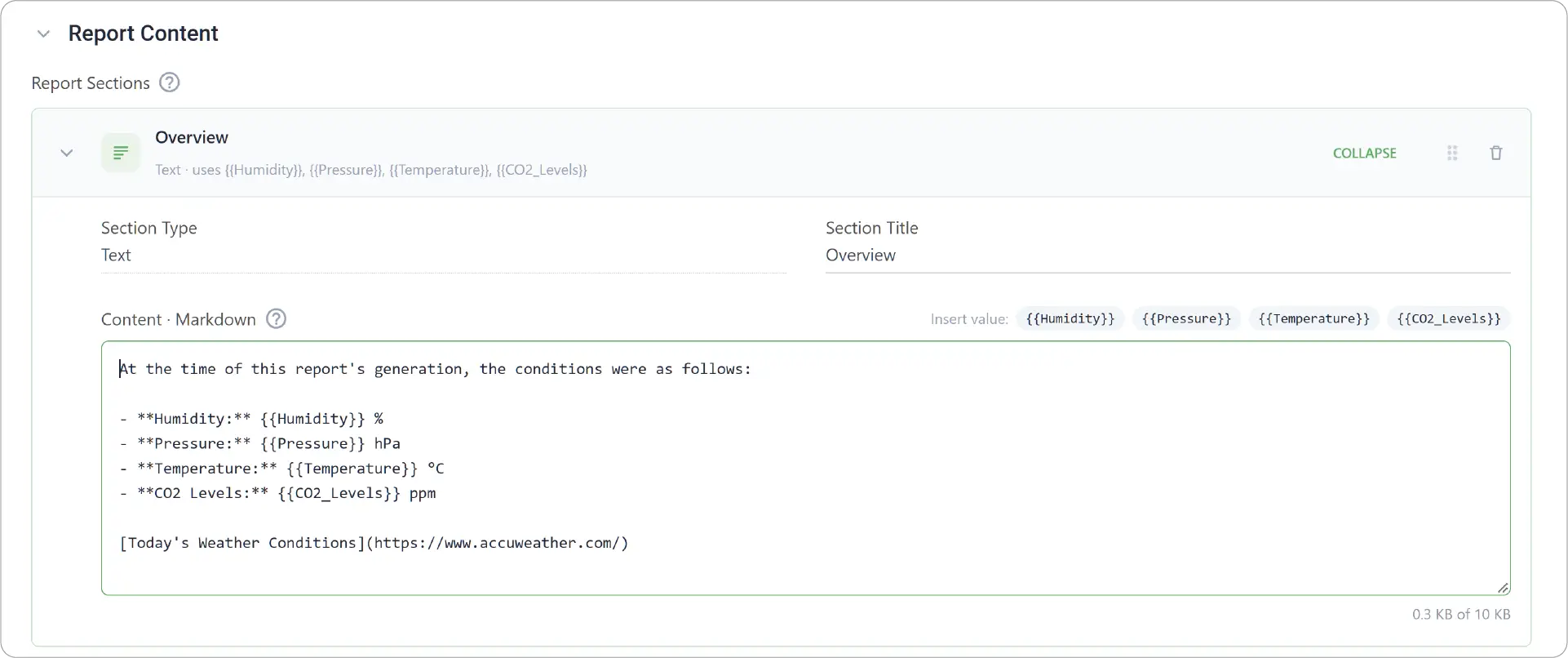
- Click Add Text.
- Enter the Section Title and the content in the Content Markdown box.
- Use plain text or markdown format to create the content body.
- Insert values in the content by clicking on the metrics above the content box.
| To Get | Type |
|---|---|
| Headings | ## Heading |
| Bold Text | **important** |
| List | - First item- Second item |
| Link | [Machinechat](https://machinechat.io) |
| Insert Latest Metric Value | {{metricName}} (JEDI replaces this with the latest reading) |
| Block Diagram | Use Mermaid code block |
Add Table Section
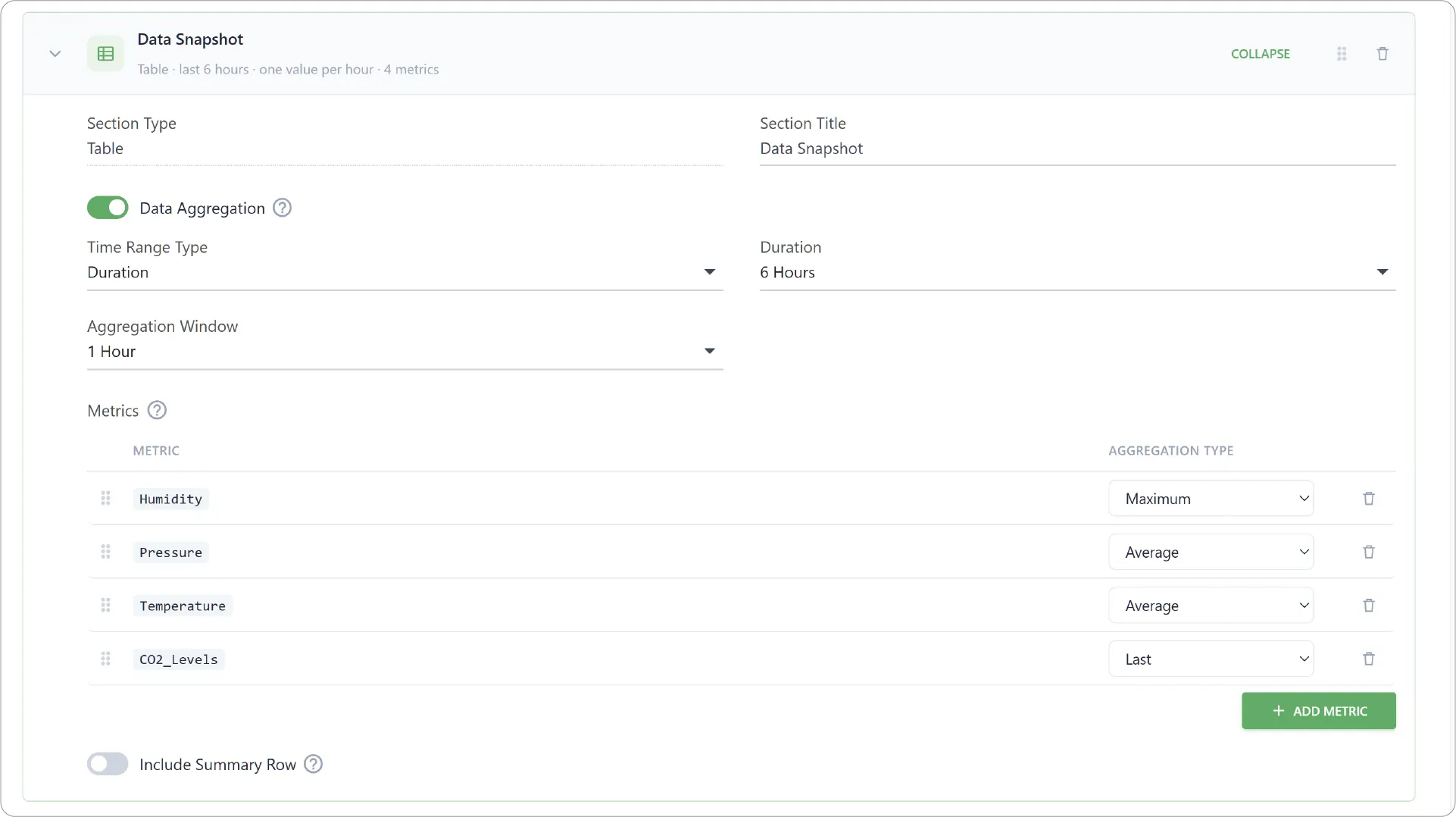
- Click Add Table and enter a Section Title.
- Enable/disable Data Aggregation.
- Choose the Time Range Type the report covers:
- Duration to use data collected during specific amount of time right before report generation
- Fixed Range for specific period of time or custom range of dates
- Pick Aggregation Window time to specify how much data is combined per row of the table.
- Click Add Metric.
- Choose a metric.
- Choose Aggregation Type to specify how the data within the aggregation window is combined.
- Repeat for each metric.
- Add the same metric more than once to display different types of aggregation for that metric.
- Optionally, enable Include Summary Row to display lowest, highest, and average values.
Add Chart Section
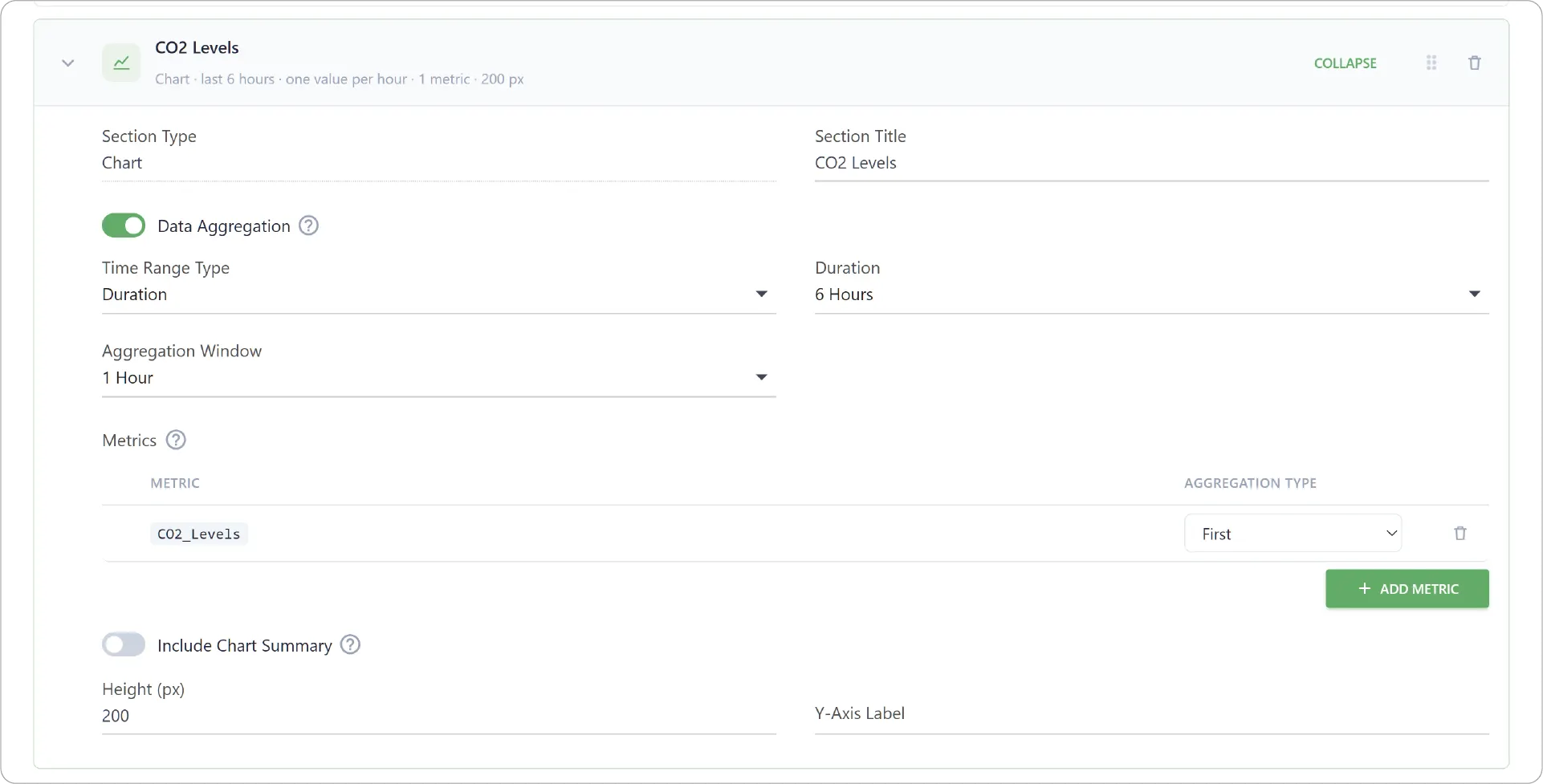
- Click Add Chart to add a line chart.
- Follow the same steps to add metrics as mentioned in Add Table Section.
- Fine-tune Y-axis Height and optionally enter a Y-Axis Label.
Reorder Sections & Metrics
- Grab the grip/drag handle icon () on the sections or metrics to drag and reorder them as needed.
Save the Report
- Click Save when you are done building the report.
- In Manage Reports page, open the menu under Actions and Enable it.
Use Cases
- Shift handover reports with the latest readings and a summary of the previous shift.
- Equipment monitoring reports with tables and charts showing temperature, pressure, vibration, or other operational metrics.
- Daily environmental reports combining current conditions with historical trends.
- Production reports that summarize key metrics over a recurring time period.
- Management summaries that combine written observations, key readings, and charts in a single report.
Ready to explore more? Check out Building a Grid Dashboard, Table Dashboards, and Web App Dashboards to discover more ways to visualize and act on your JEDI data. For condition-based or schedule-with-condition reports, check out Rule-Based HTML Reports.
Need help?
Contact our support team: support@machinechat.io