Network Monitoring with Machinechat JEDI
Feature Deprecated
This feature was available in JEDI 3.x but is no longer supported in newer versions.
Gain insights into device connectivity and network health using JEDI's built-in network monitoring feature. JEDI periodically sends ICMP (ping) requests to configured devices, tracking their status, latency, and packet loss.
Important
Permissions Note
To enable network monitoring, JEDI requires administrative privileges.
- Windows: Launch JEDI from an Administrator account.
- macOS/Linux: Run JEDI with root privileges.
Please be aware that files created by JEDI will inherit these elevated permissions.
Getting Started
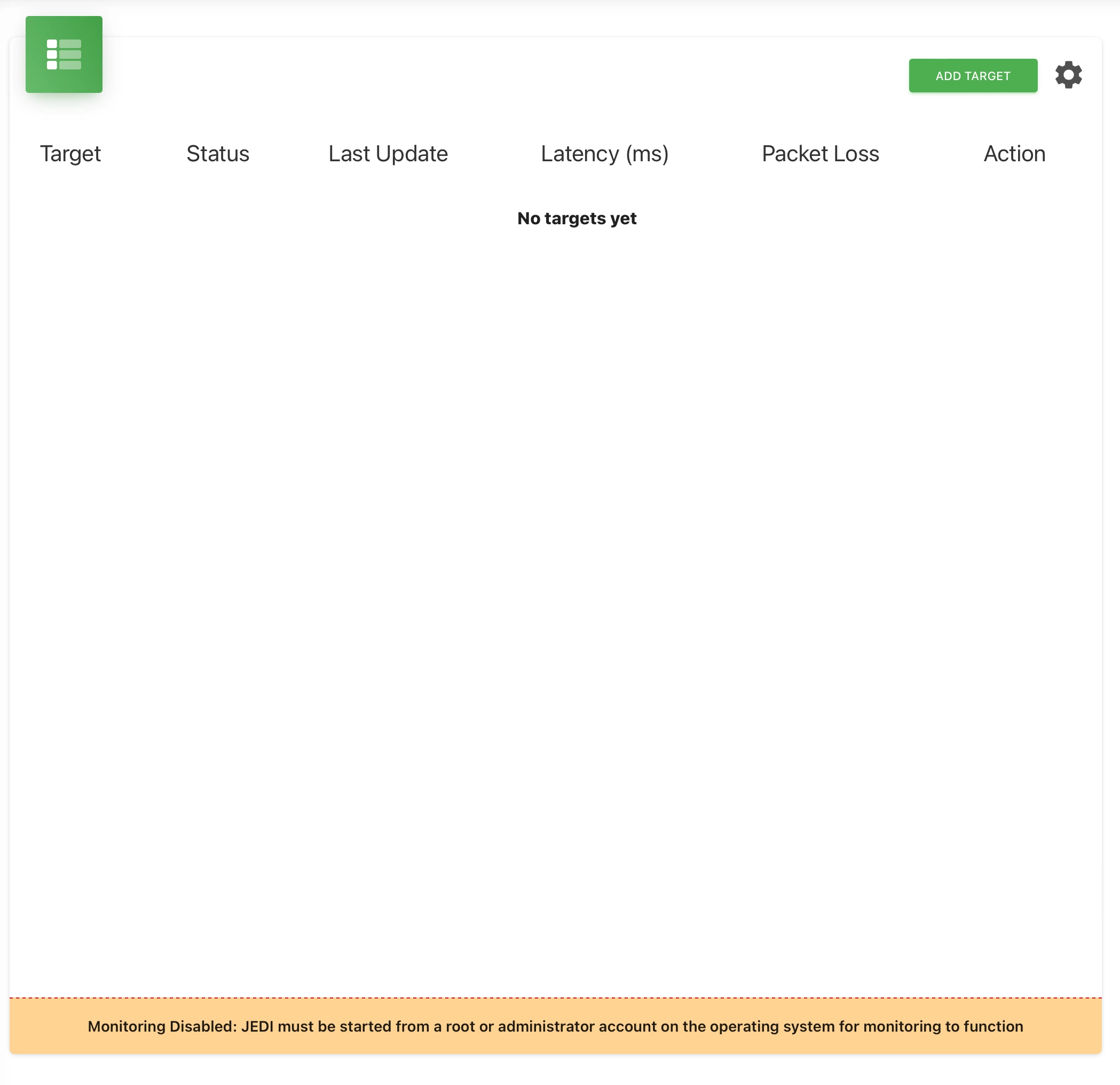
- Monitoring Dashboard: Navigate to the "Monitoring" section of JEDI's navigation panel.
- Target List: You'll see a table displaying your currently configured monitoring targets. Columns include:
- Target: The hostname or IP address being monitored.
- Status: Up or Down based on ping responses.
- Last Update: The timestamp of the most recent ping check.
- Latency (ms): Round-trip time of ping requests.
- Packet Loss: Percentage of ping packets lost.
- Action: Options for editing or deleting targets.
- Add Target: Click the "ADD TARGET" button to start monitoring a new device. Provide its hostname or IP address.
- Global Settings: Click the gear icon to adjust JEDI's network monitoring settings.
Configuring Monitoring Settings
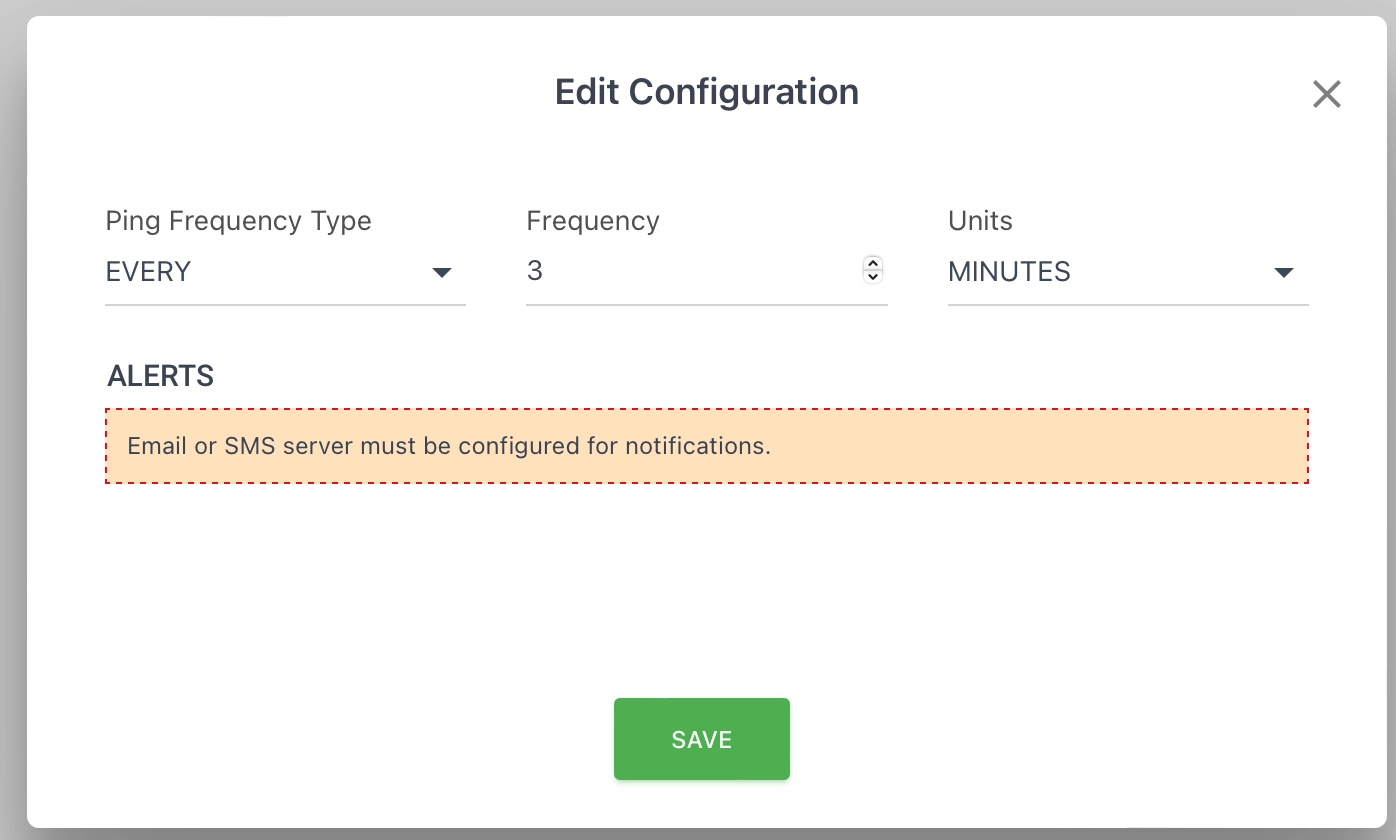
- Ping Frequency Type:
- EVERY: Monitoring occurs at a regular interval.
- DAILY: Monitoring occurs once per day at a specified time.
- Frequency: A numeric value.
- Units: Determines the interpretation of the frequency (MINUTES, HOURS, DAYS).
Alerts (Optional)
If you have configured JEDI's email and/or SMS notification services, you can set up alerts to be sent when devices go offline or network performance degrades.
Use Cases
- Device Availability: Track whether critical devices remain online and responsive.
- Network Latency: Monitor round-trip time to identify potential bottlenecks or connection issues.
- Packet Loss: Detect network congestion or reliability problems.
Have a questions? Contact our support team support@machinechat.io