Configuring a CSV Report
CSV Reports allow you to automatically export collected device data as a comma-separated values (CSV) file and email it to one or more recipients. CSV reports are intended for users who need data for further analysis in spreadsheet applications, business intelligence tools, or custom workflows.
Requirements
Before configuring an HTML report, make sure the following requirements are met:
- An email notification service (SMTP) has been configured.
- Recipients must be existing JEDI users with valid email addresses.
- Ensure data reception from your devices.
Configure a CSV Report
CSV reports are created as an Action within a Rule and are generated each time the rule is triggered.
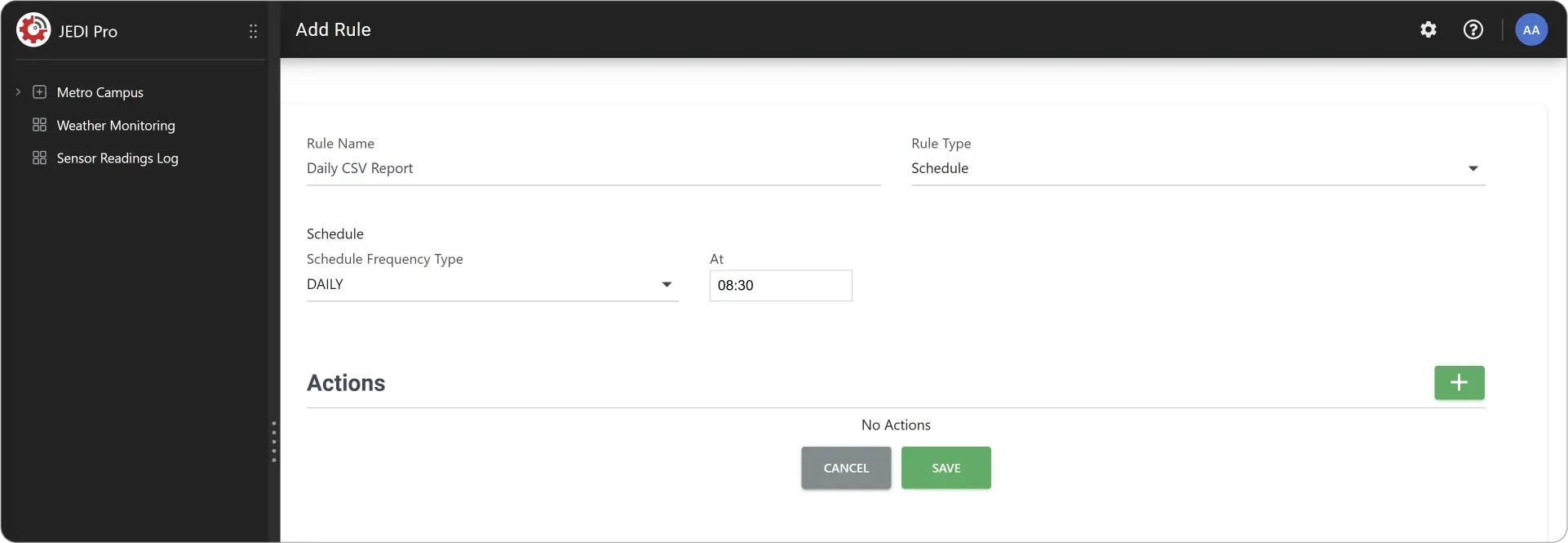
Add Rule
- Go to Settings Rules and click on Add Rule.
- Configure the Rule Trigger Settings: Schedule, Condition, or Schedule with Condition.
Add Action
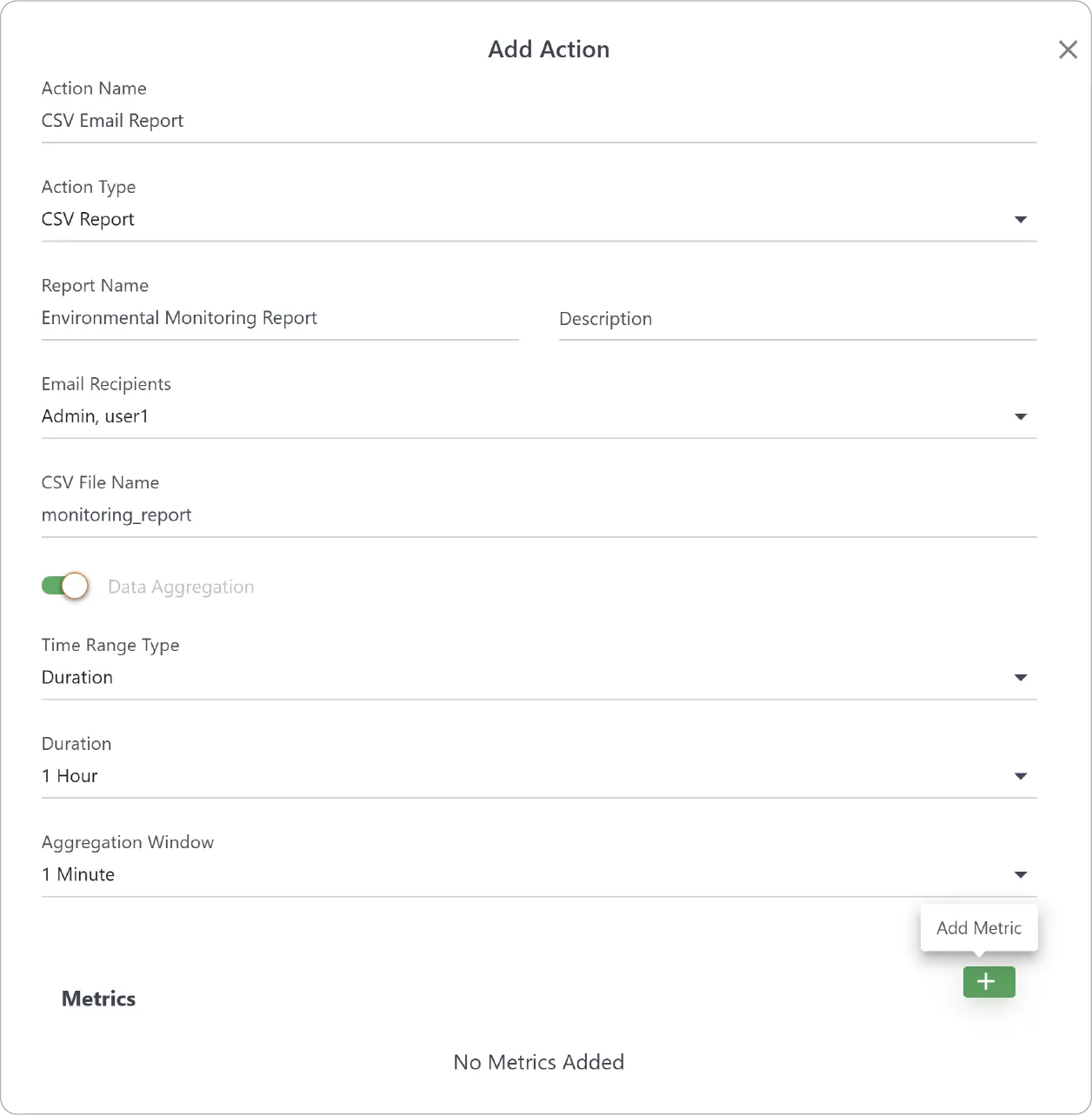
- Click Add Action (+), enter an Action Name, and set Action Type to CSV Report.
- Configure the following details:
- Report Name
- Description (optional)
- CSV File Name
- Email Recipients: Choose from the list of JEDI uses
- Enable Data Aggregation (optional) to set Aggregation Window
- Time Range Type: Duration (1 Hour, 6 Hours, 12 Hours, 24 Hours, and 7 Days) or Fixed Range to set a Date Range
- Aggregation Window: Aggregates collected data for selected duration
Add Metrics
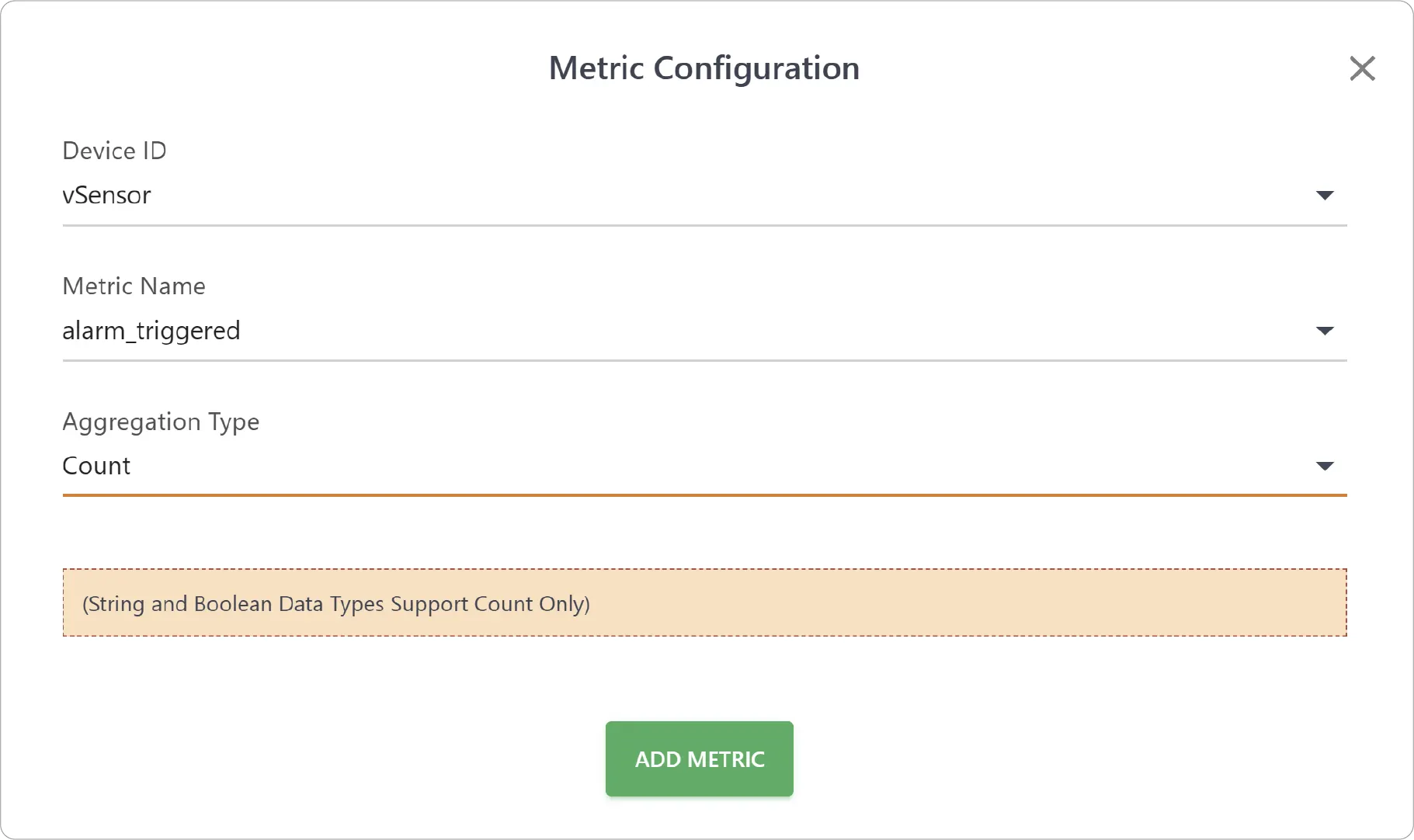
- Under Metrics, click Add Metric (+).
- Select Device ID, Metric Name, and Aggregation Type (Average, Minimum, Maximum, Count)
- Click Add Metric.
- Add the rest of the metrics.
Add the Action and Save the Rule
- Click Add to save the Action.
- Click Save the Rule.
- Whenever the Rule is triggered, JEDI generates the CSV Report and emails it to the selected recipients.
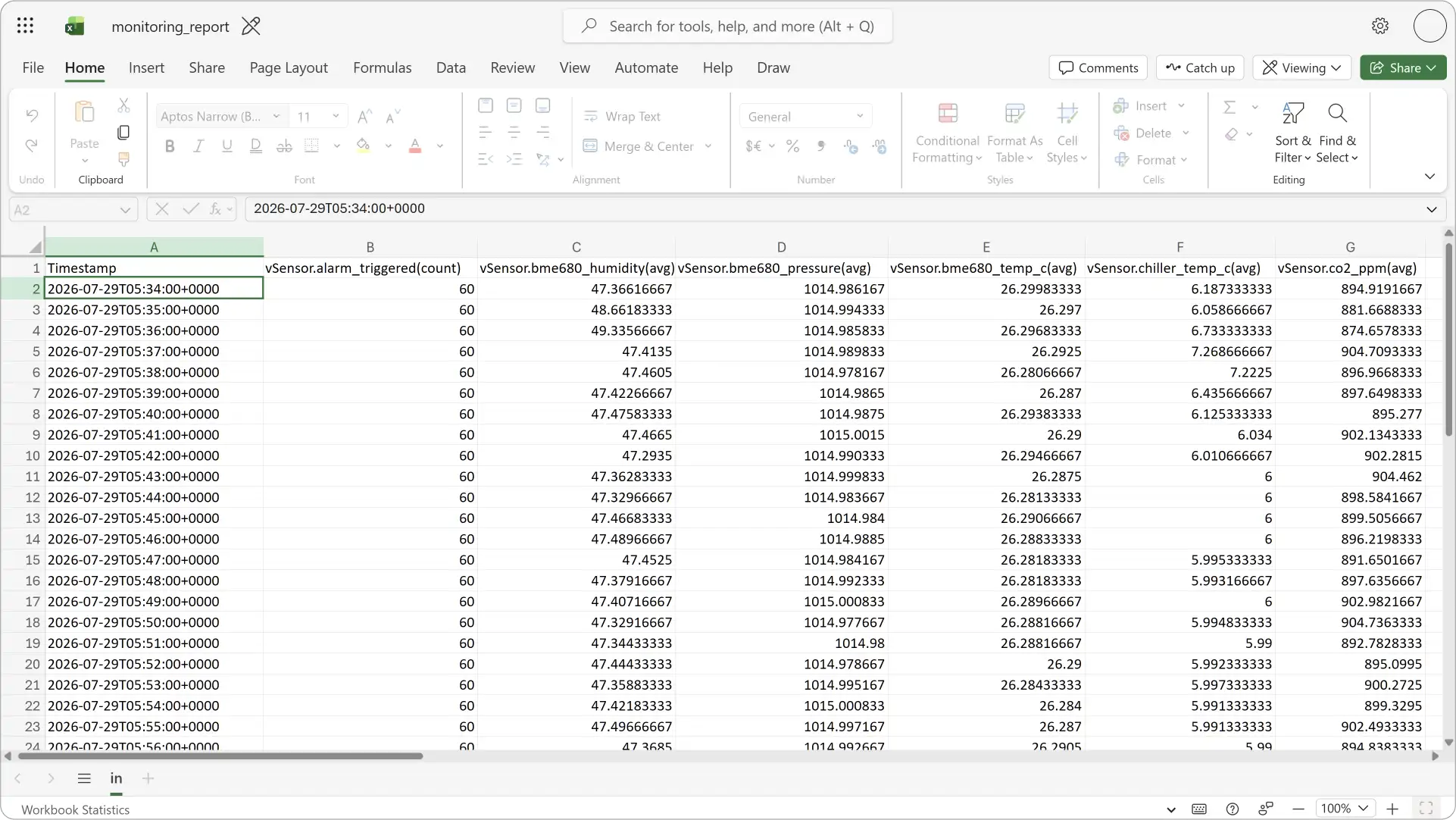
CSV reports provide an efficient way to export and share sensor and device data for further analysis. They are ideal when recipients need to manipulate data, perform calculations, or integrate measurements into external analytics systems.
If you want to automatically send presentation-ready reports containing charts, tables, and explanatory text, check out HTML Reports.
Need help?
Contact our support team: support@machinechat.io